Watch the video below OR scroll down to view the steps listed out instead.
TABLE OF CONTENTS
Video Tutorial:
Step By Step Guide:
Scenario (Learn) Activity Assignment
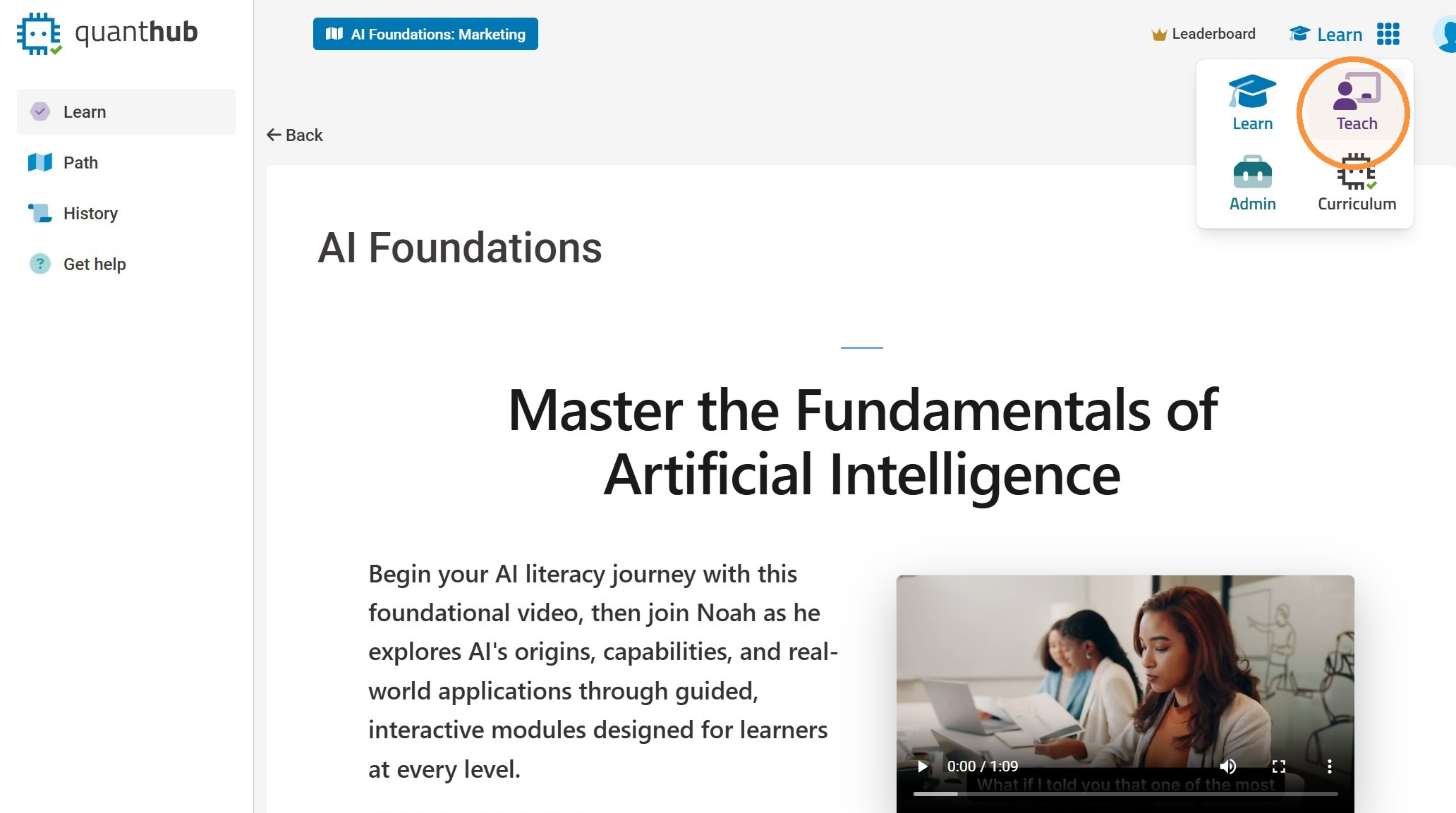
1. To assign QuantHub scenario (learn) activities start by selecting the "Nine Dot" menu on the top right. Then select the "Teach" app.
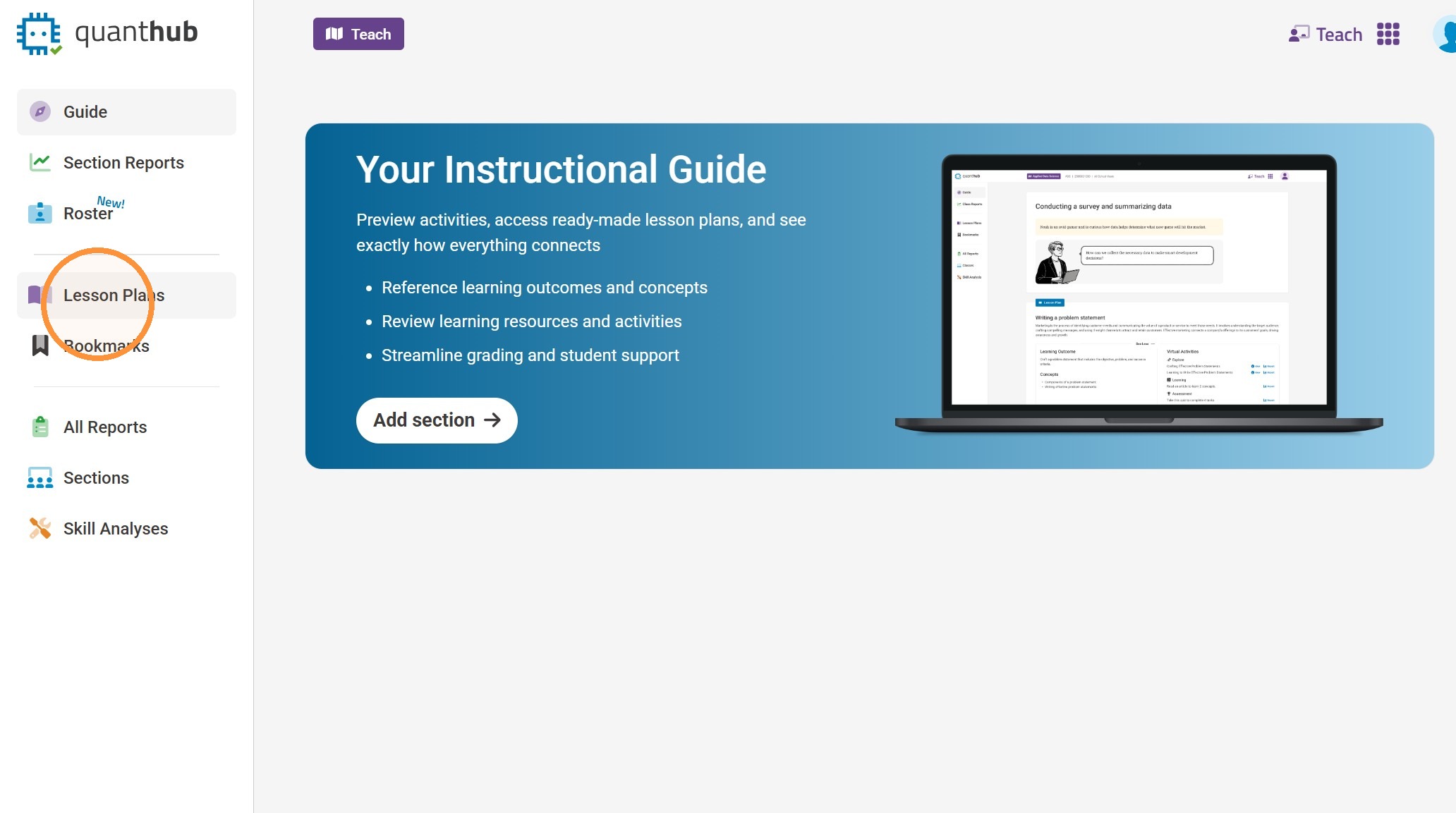
2. Select "Lesson Plans" on the left hand side
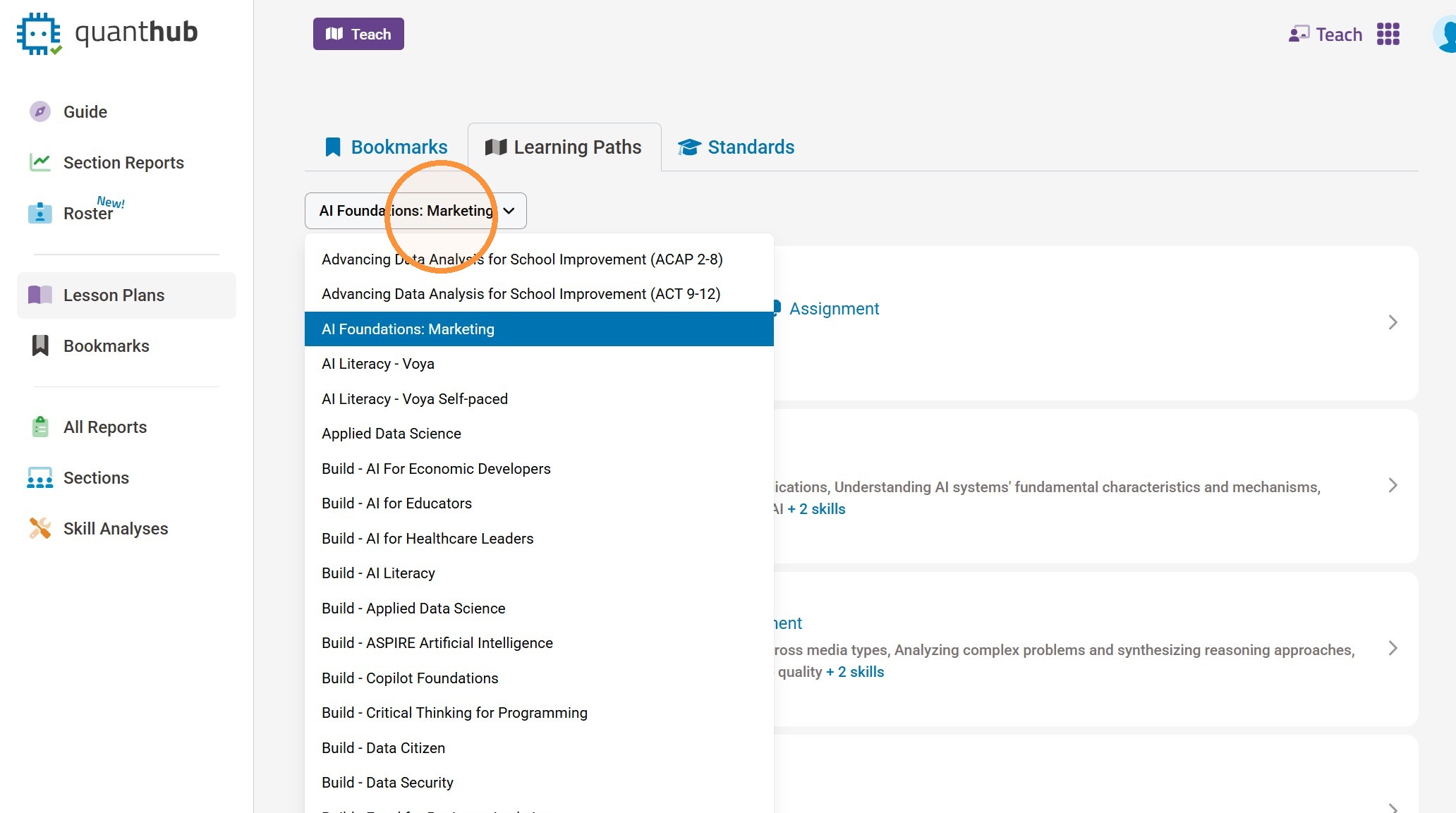
3. Select the appropriate learning path from the drop-down box.
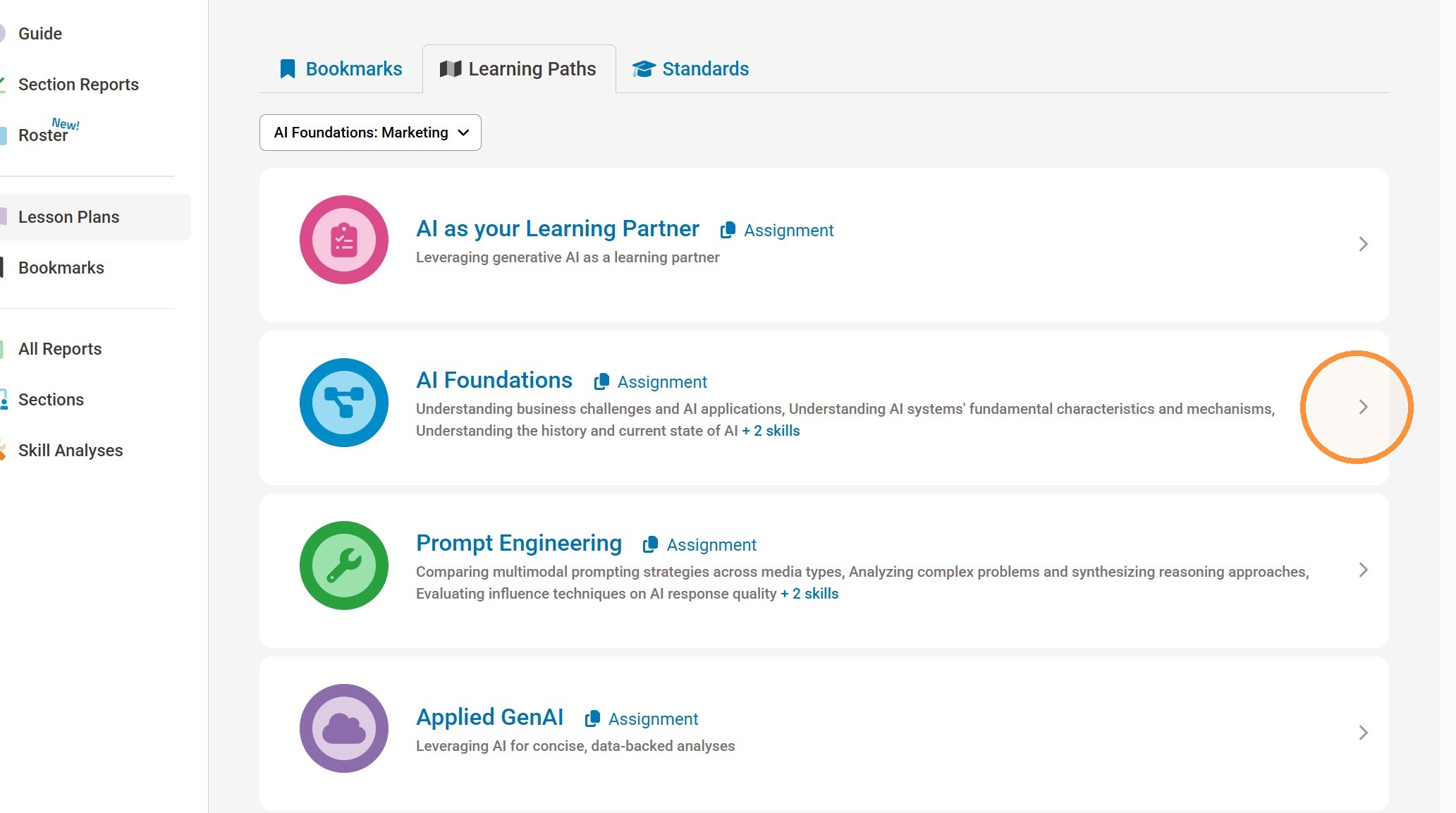
4. Select the appropriate level that contains the activity you wish to assign.
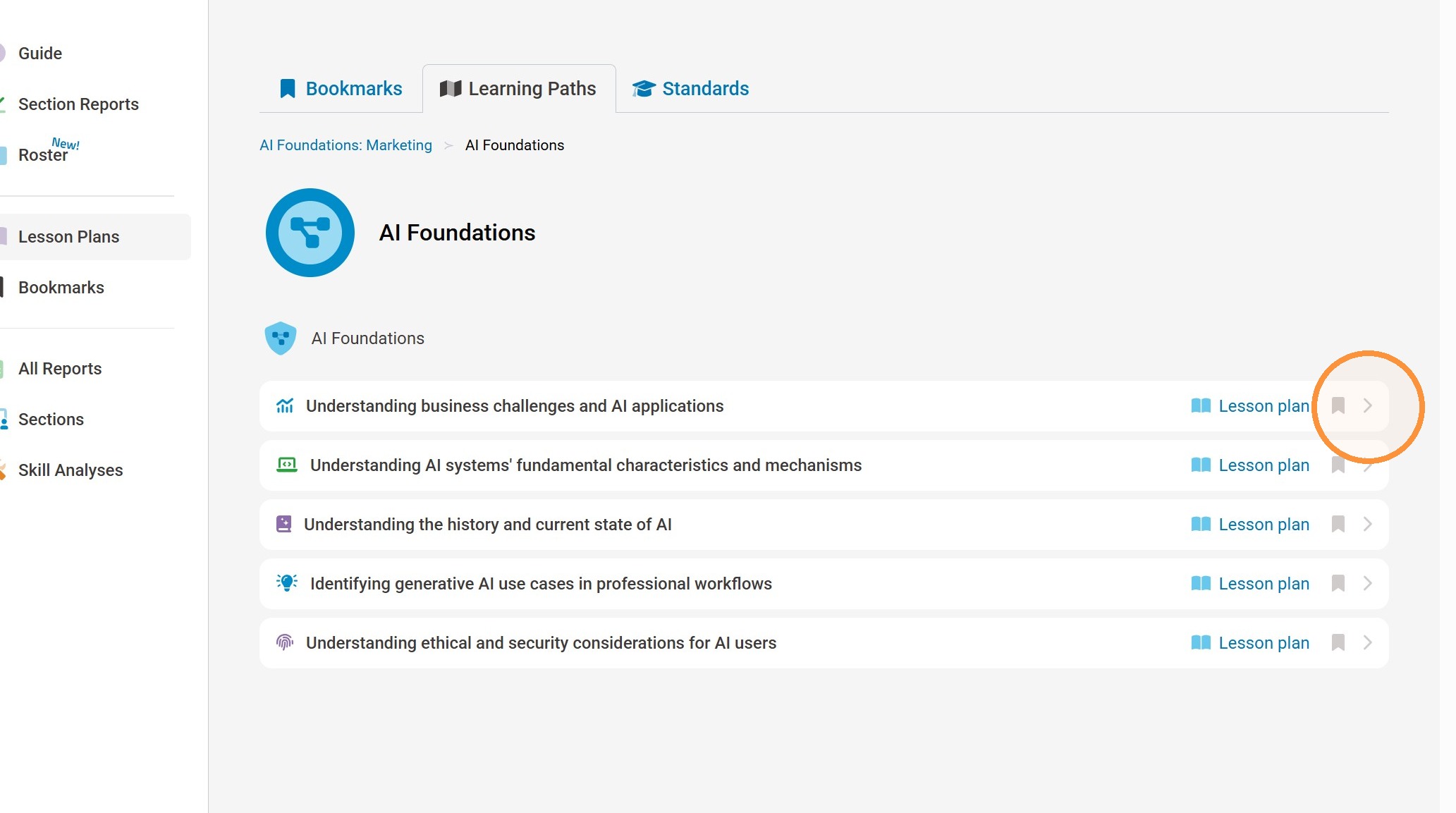
5. Select the module/skill that contains the learning activity you wish to assign.
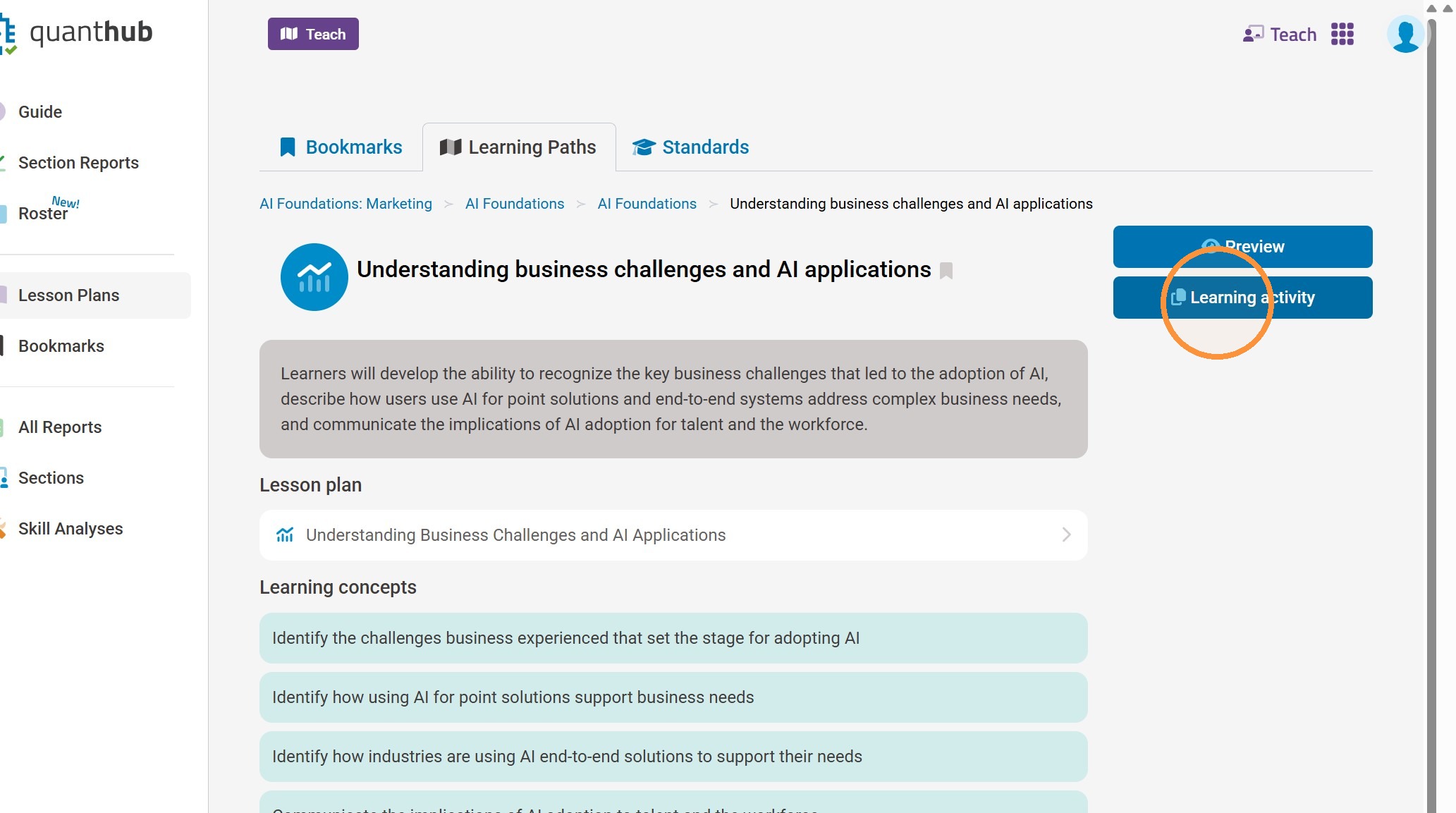
6. Select the "Learning Activity" button.
Note: This will copy the link to your clipboard. Now you can paste the link wherever you would like such as in a syllabus or as a link in an LMS or other document.
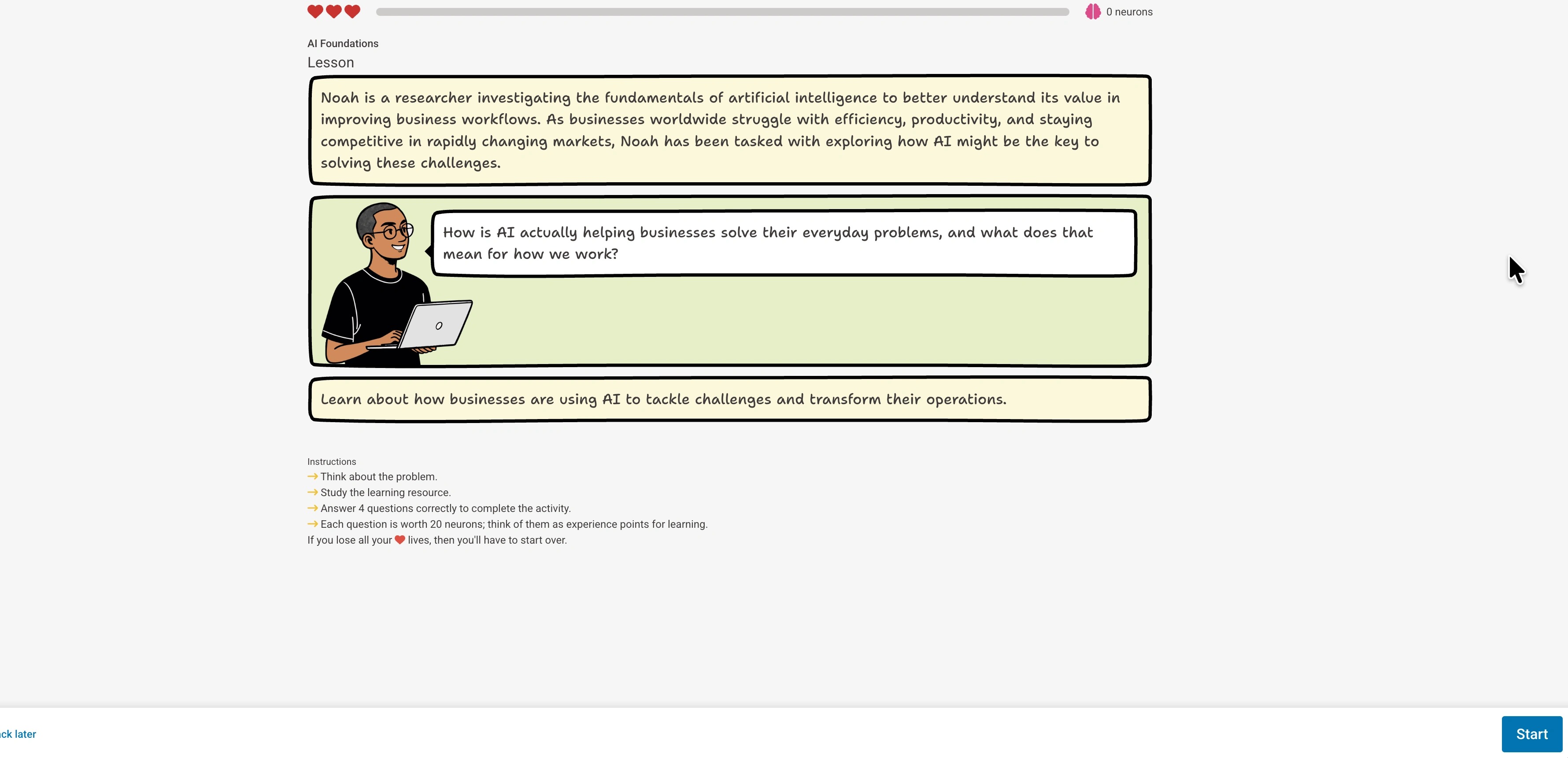
7. Once a learner opens the link they will be taken right into that scenario activity to begin.
Simulation (Assess) Activity Assignment
8. Repeat steps 1-5
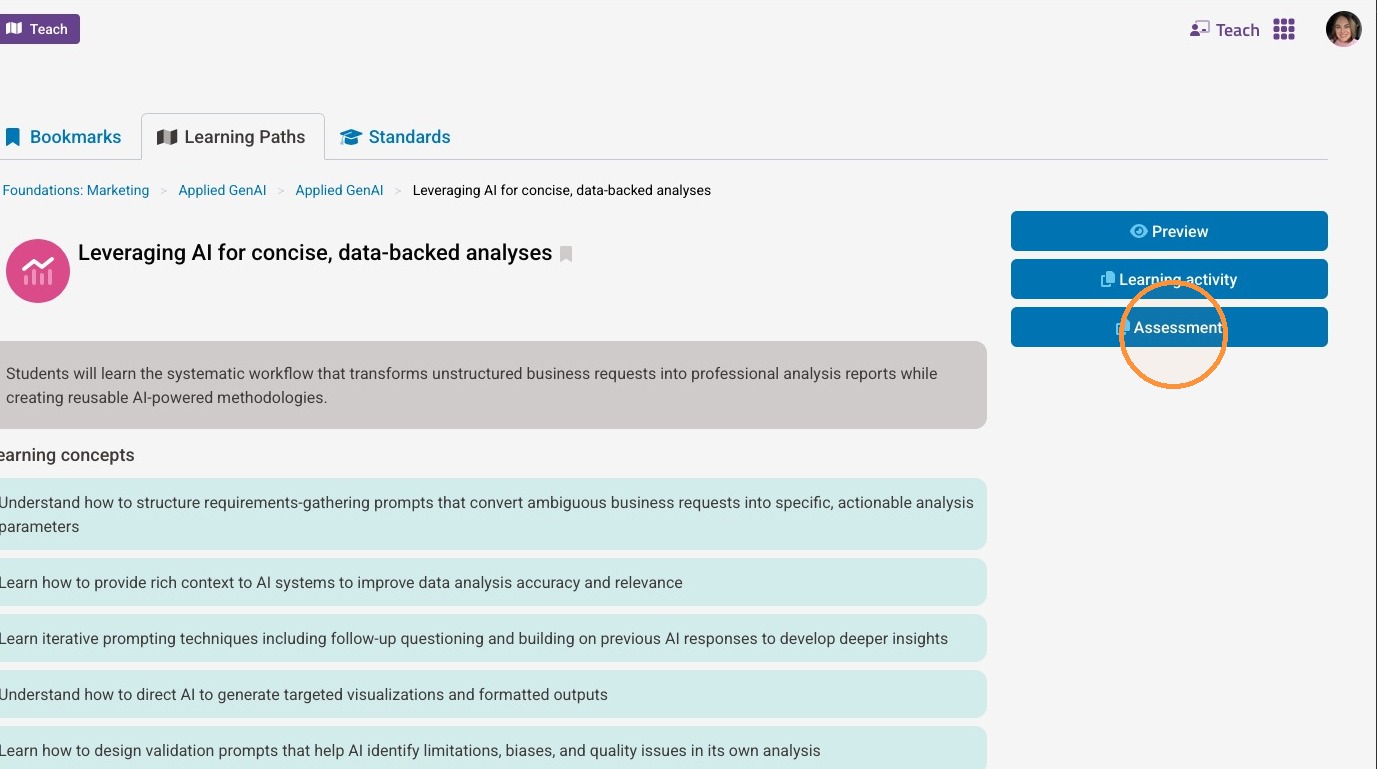
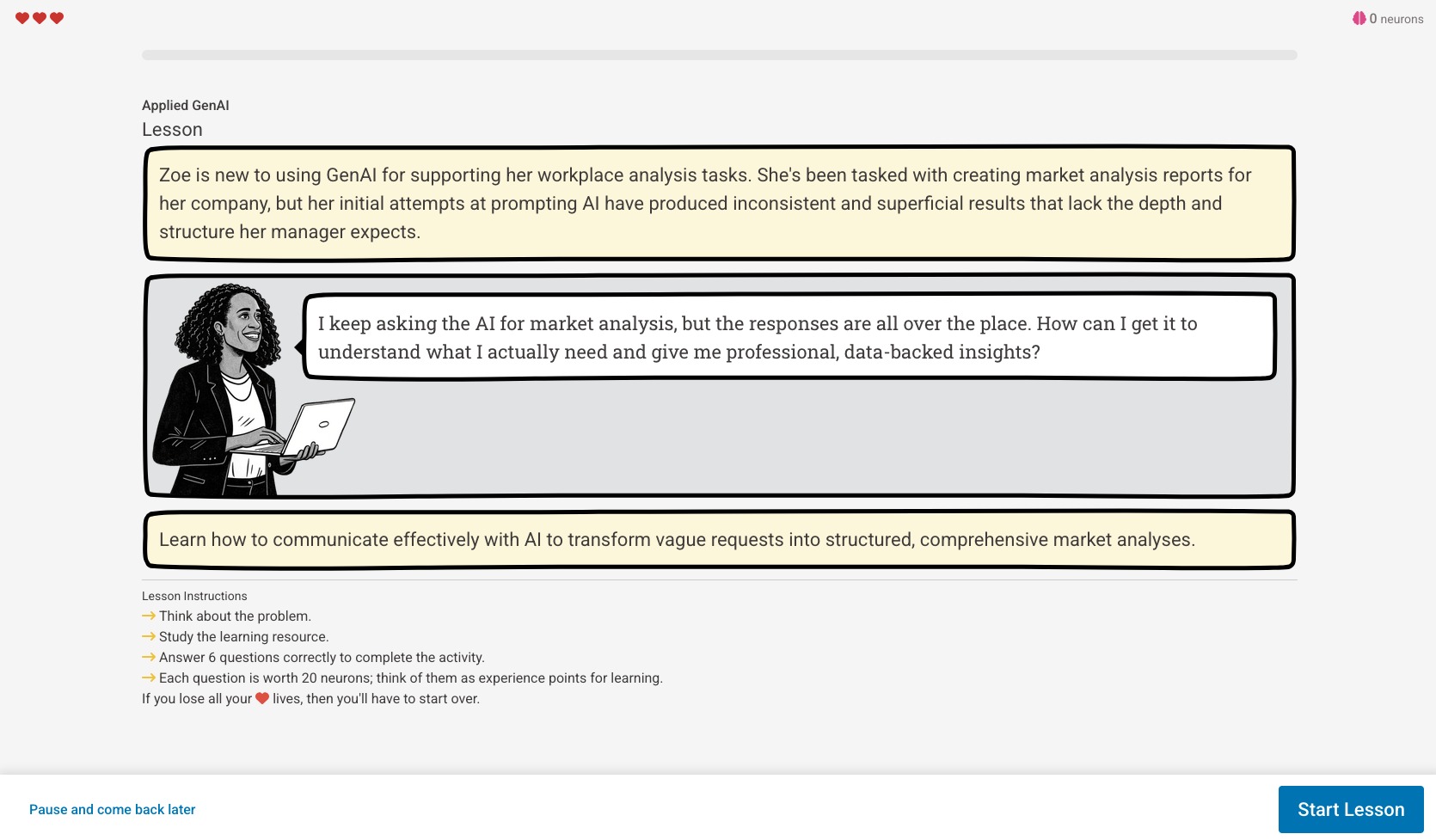
9. Select the "Assessment" button.
Note: This will copy the link to your clipboard. Now you can paste the link wherever you would like such as in a syllabus or as a link in an LMS or other document.
10. Once a learner opens the link they will be taken right into that simulation to begin.
Whole Level Assignment
11. Repeat steps 1-3
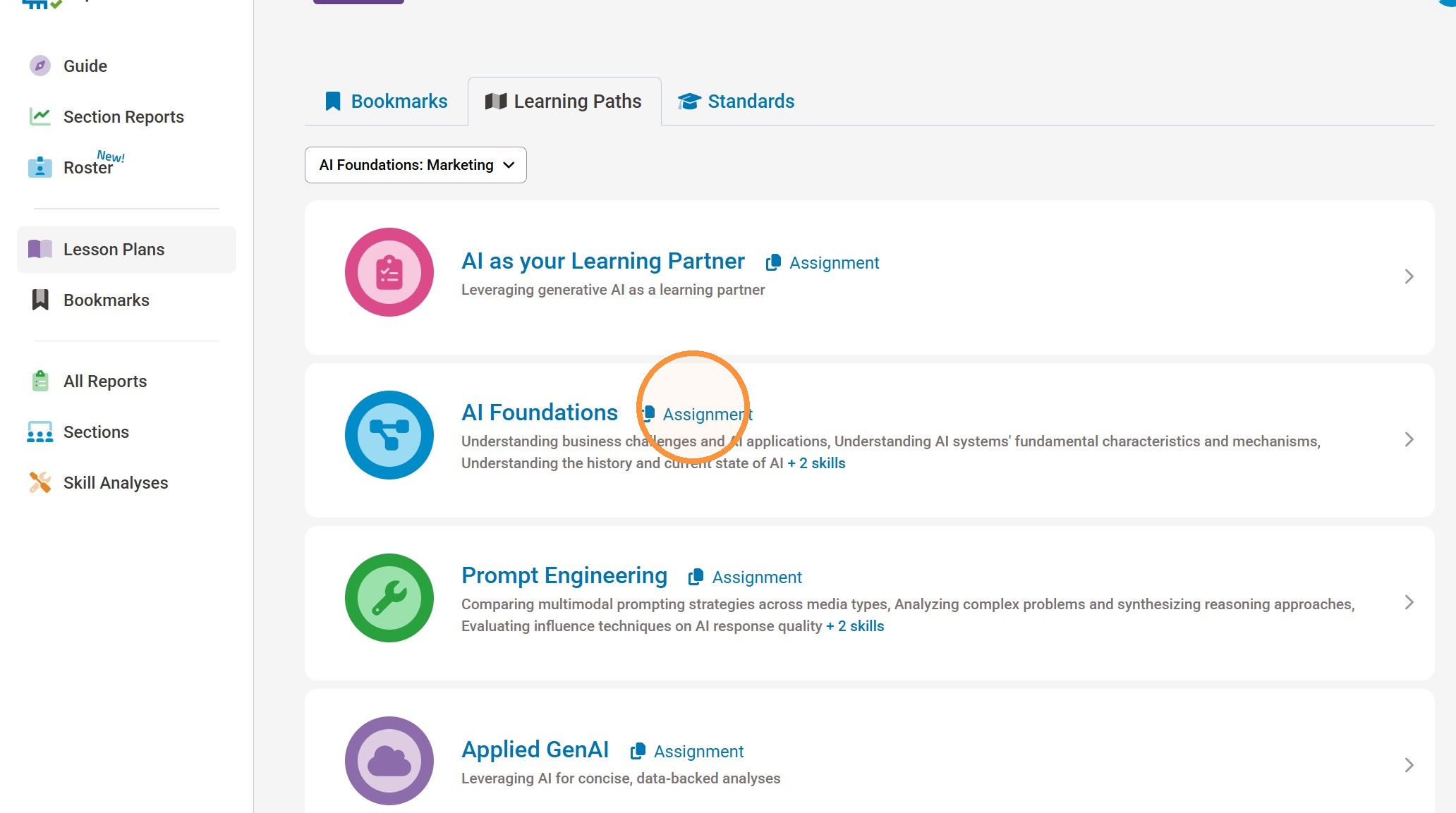
12. To assign a whole level you can select the "Assignment" button.
Note: This will copy the link to your clipboard. Now you can paste the link wherever you would like such as in a syllabus or as a link in an LMS or other document.
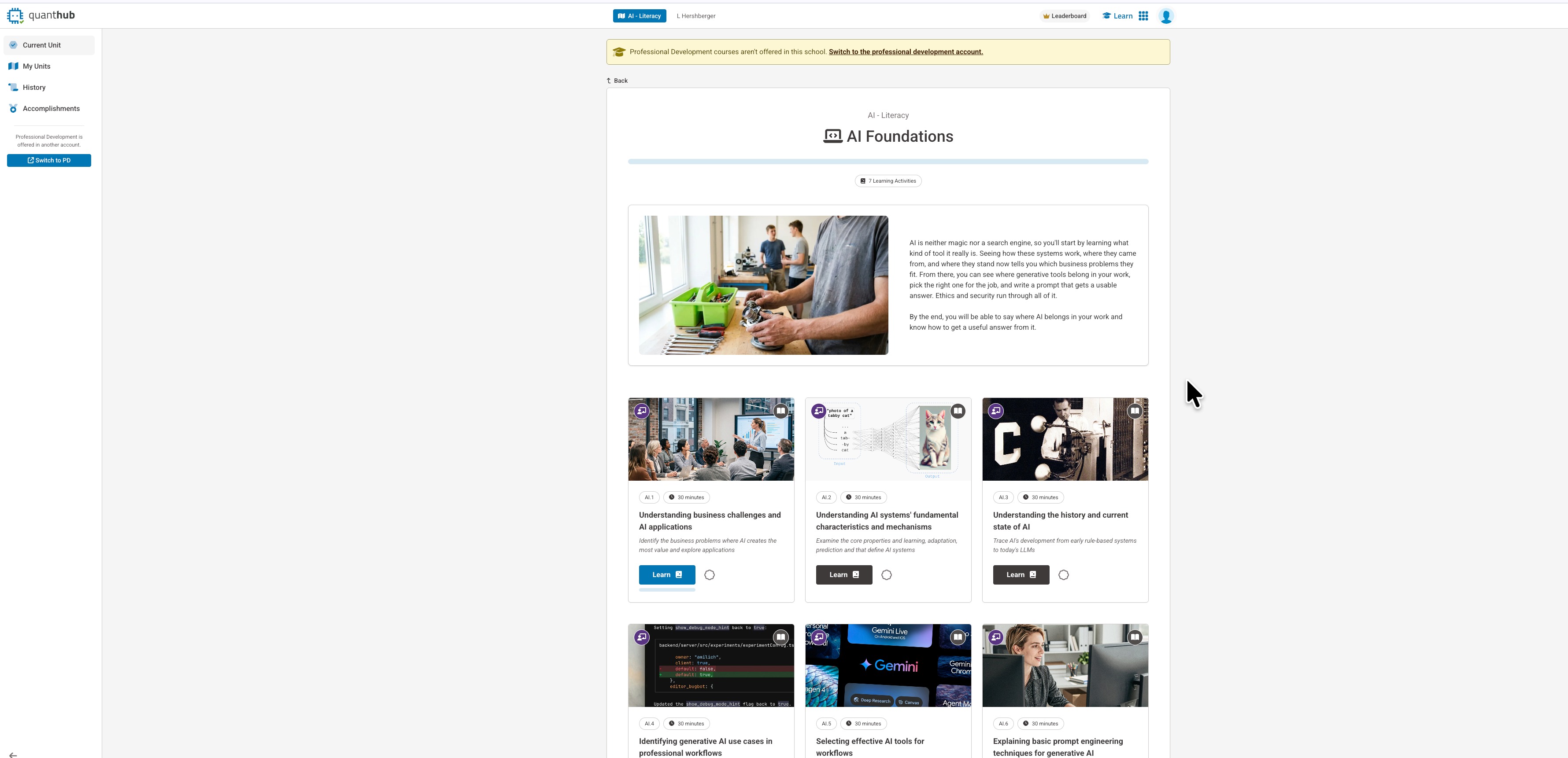
13. Once a learner opens the link they will be taken right to that specific level's page.
Was this article helpful?
That’s Great!
Thank you for your feedback
Sorry! We couldn't be helpful
Thank you for your feedback
Feedback sent
We appreciate your effort and will try to fix the article