Watch the video below OR scroll down to view the steps listed out instead.
Video Tutorial
Step By Step Guide
1. There are two places to find reports related to your team's progress. The "Team report" and "All reports."
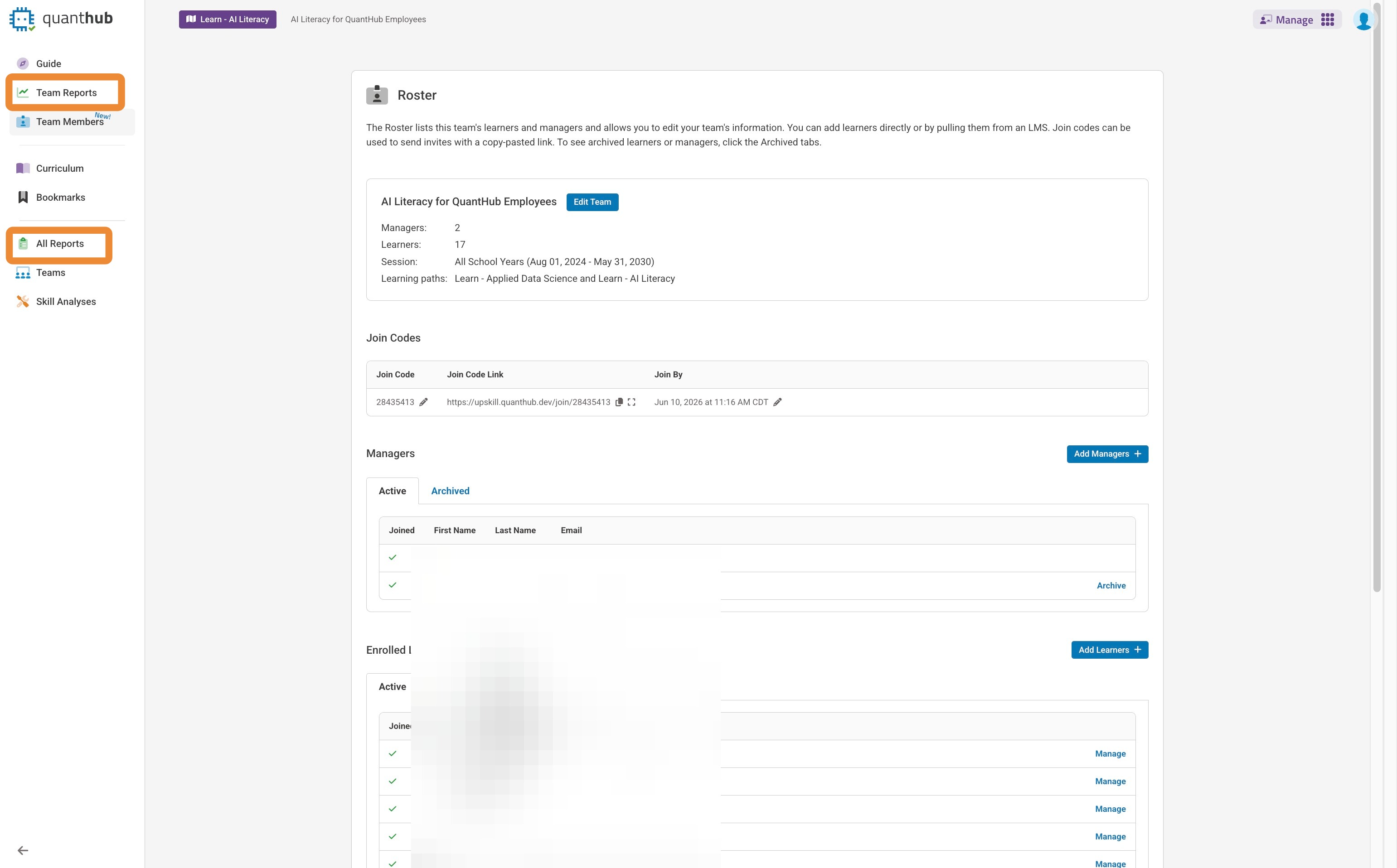
2. To access the reports make sure you are on the "Manage" tab, by selecting the nine dot icon and selecting "Manage."
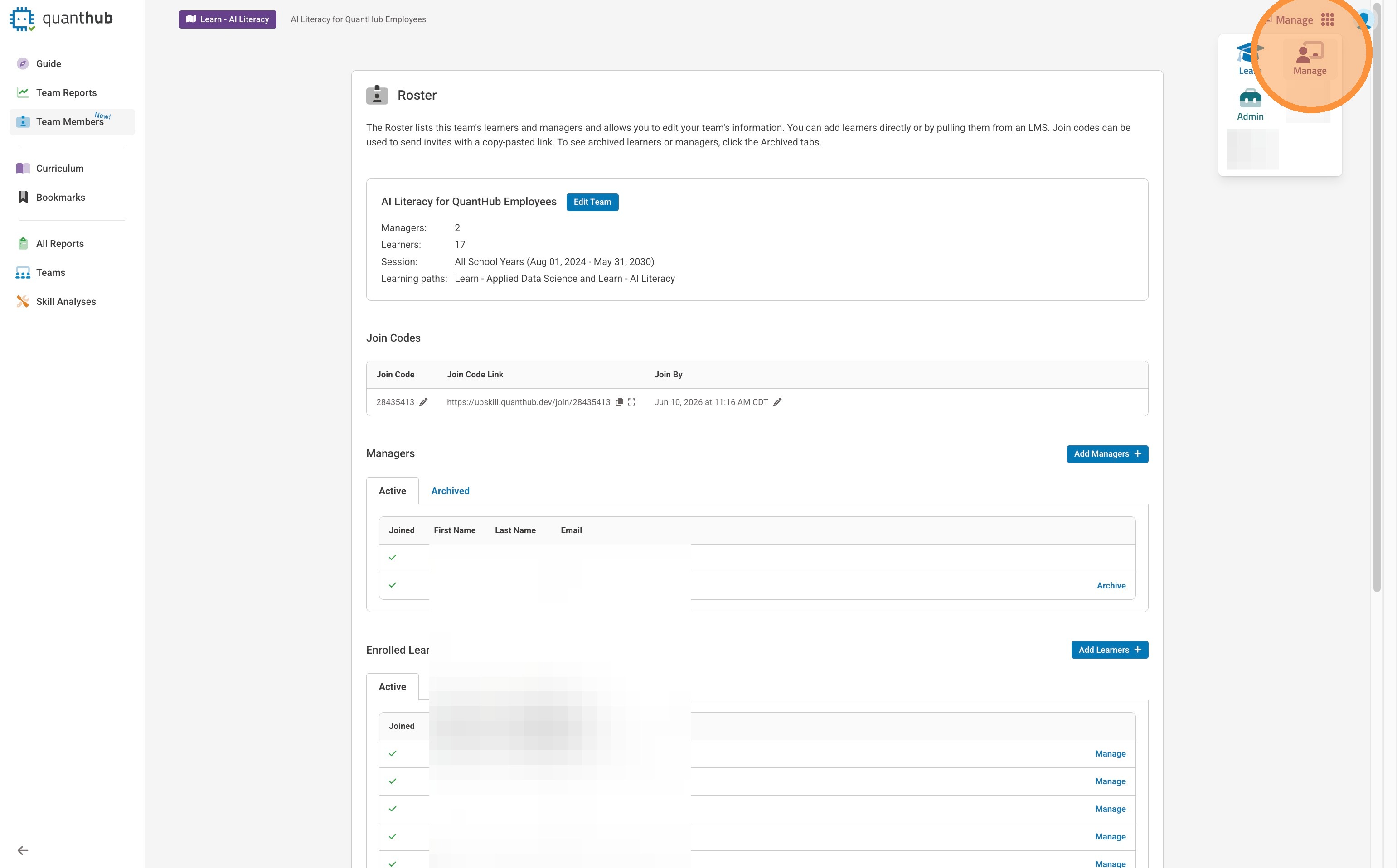
3. To access a specific team's report select the team from the drop down above.
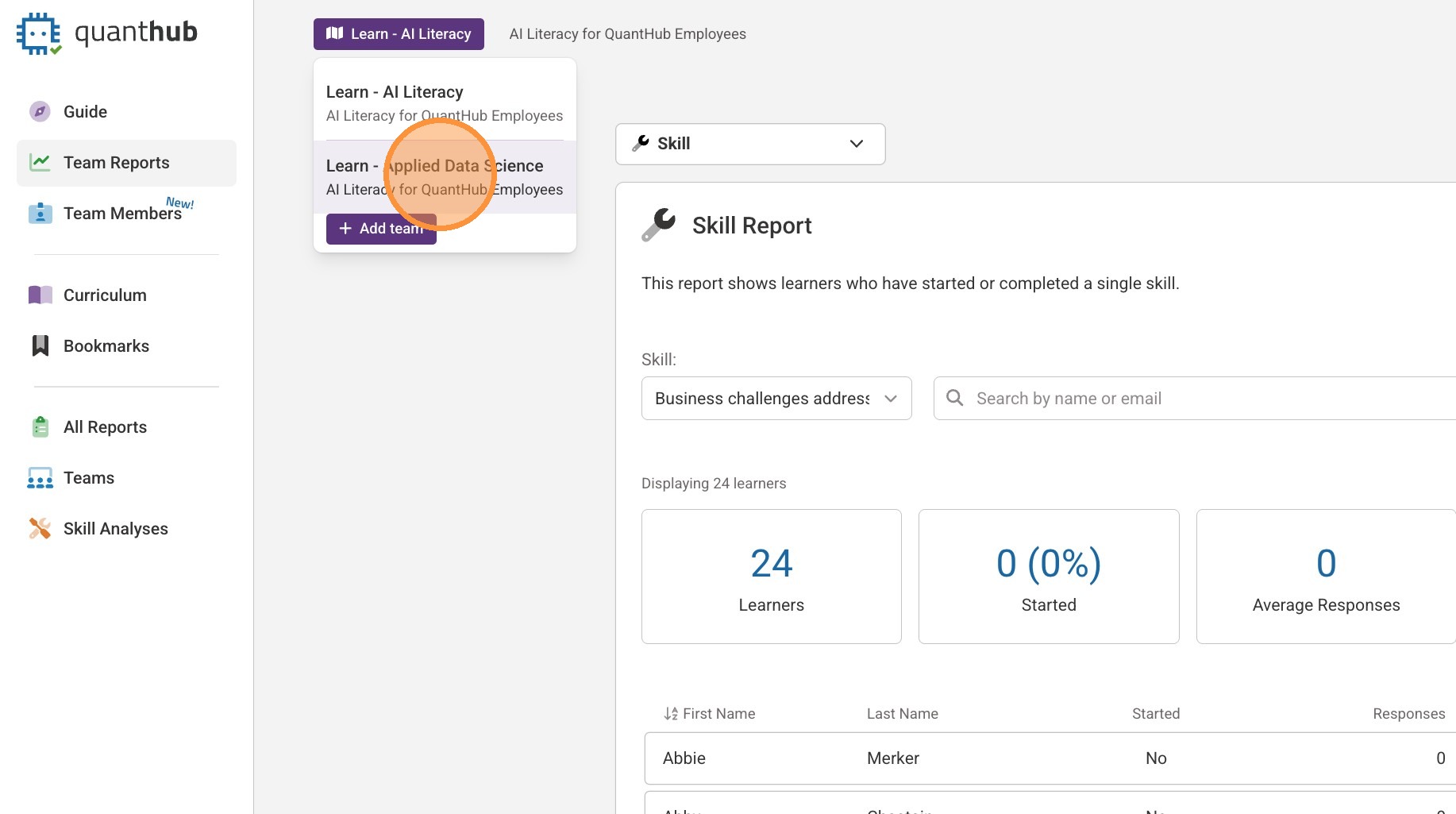
4. Select "Team Reports"
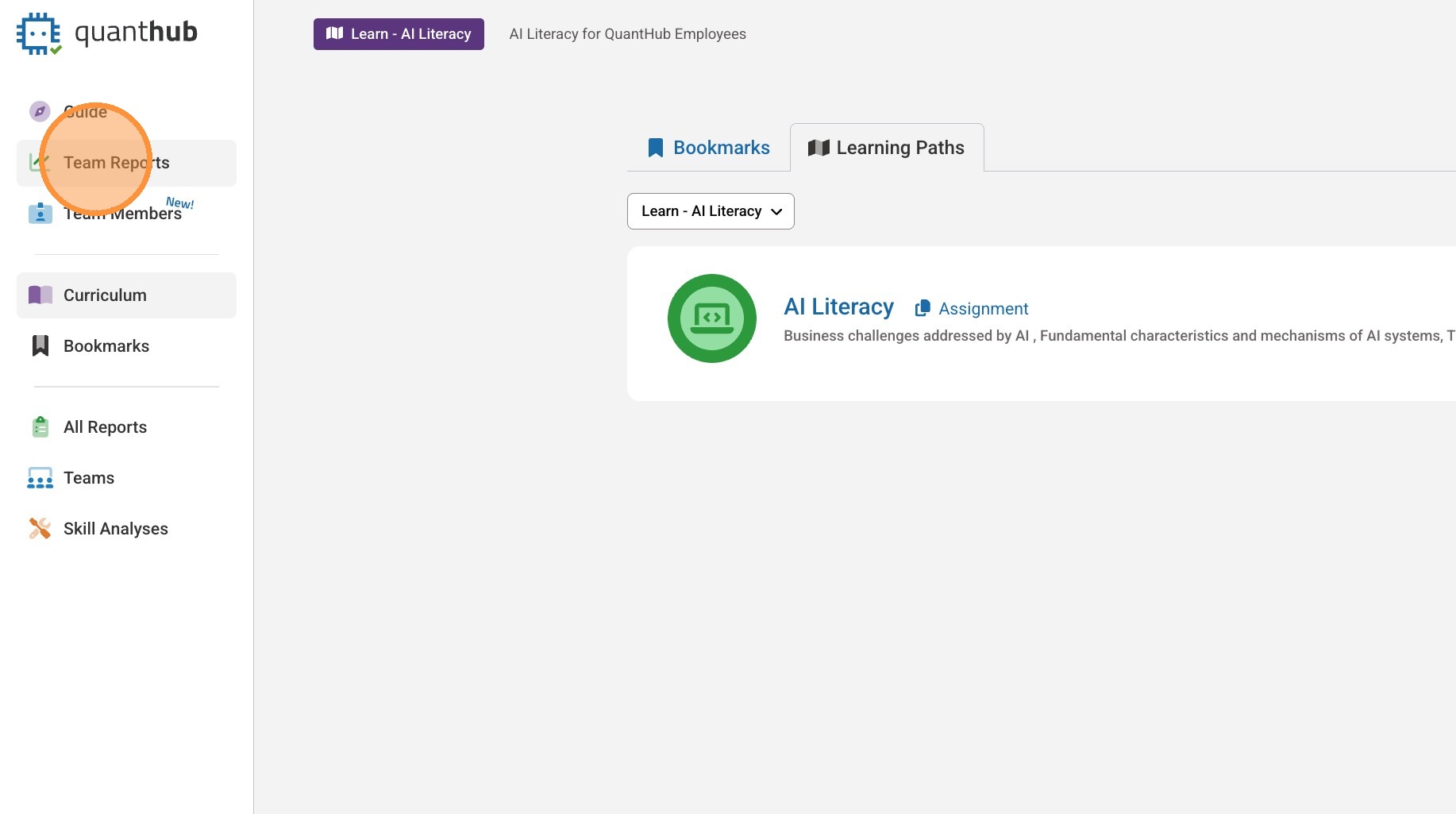
5. You will be taken to the team report page and can filter by which learning activity you are trying to view.
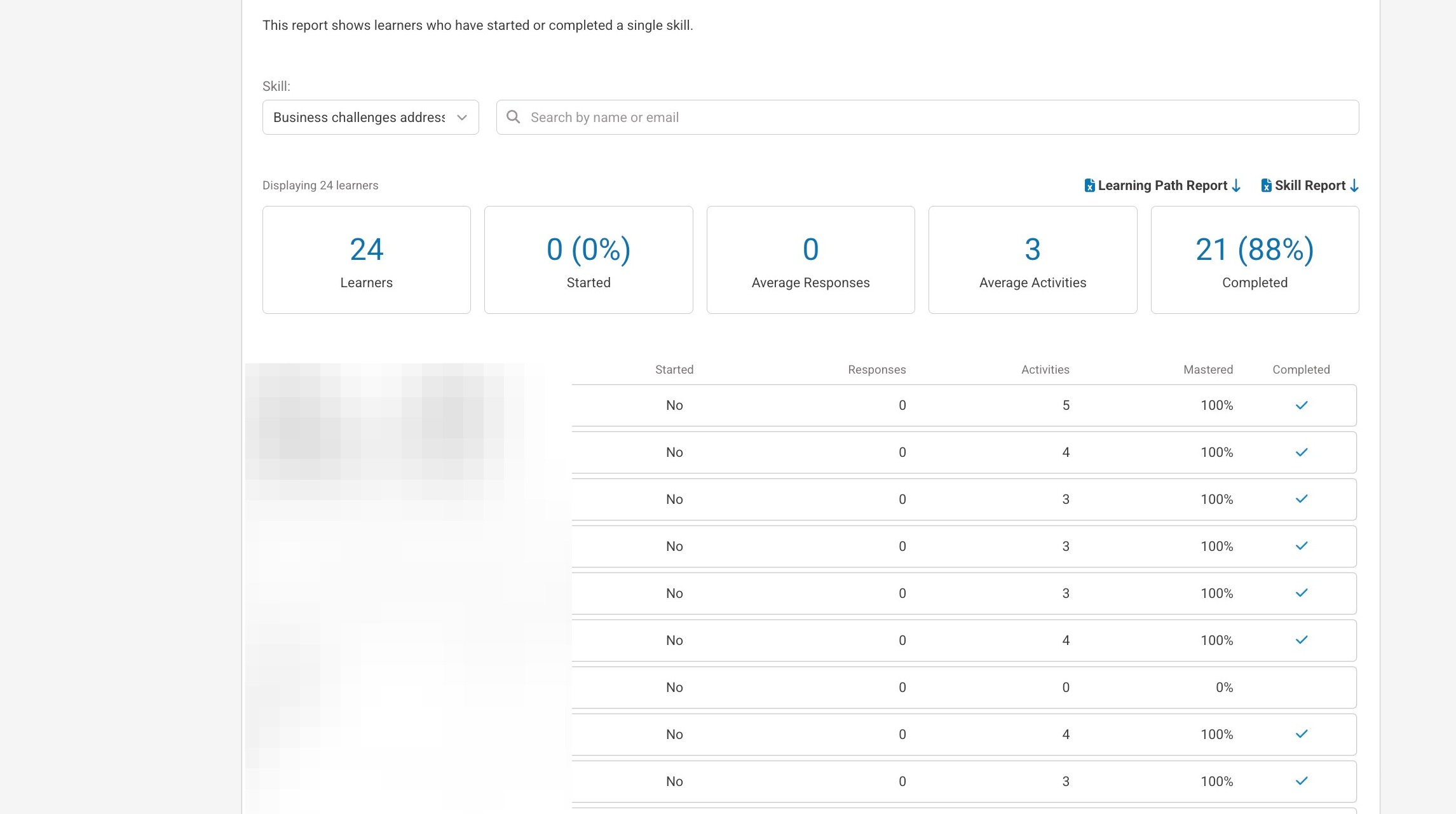
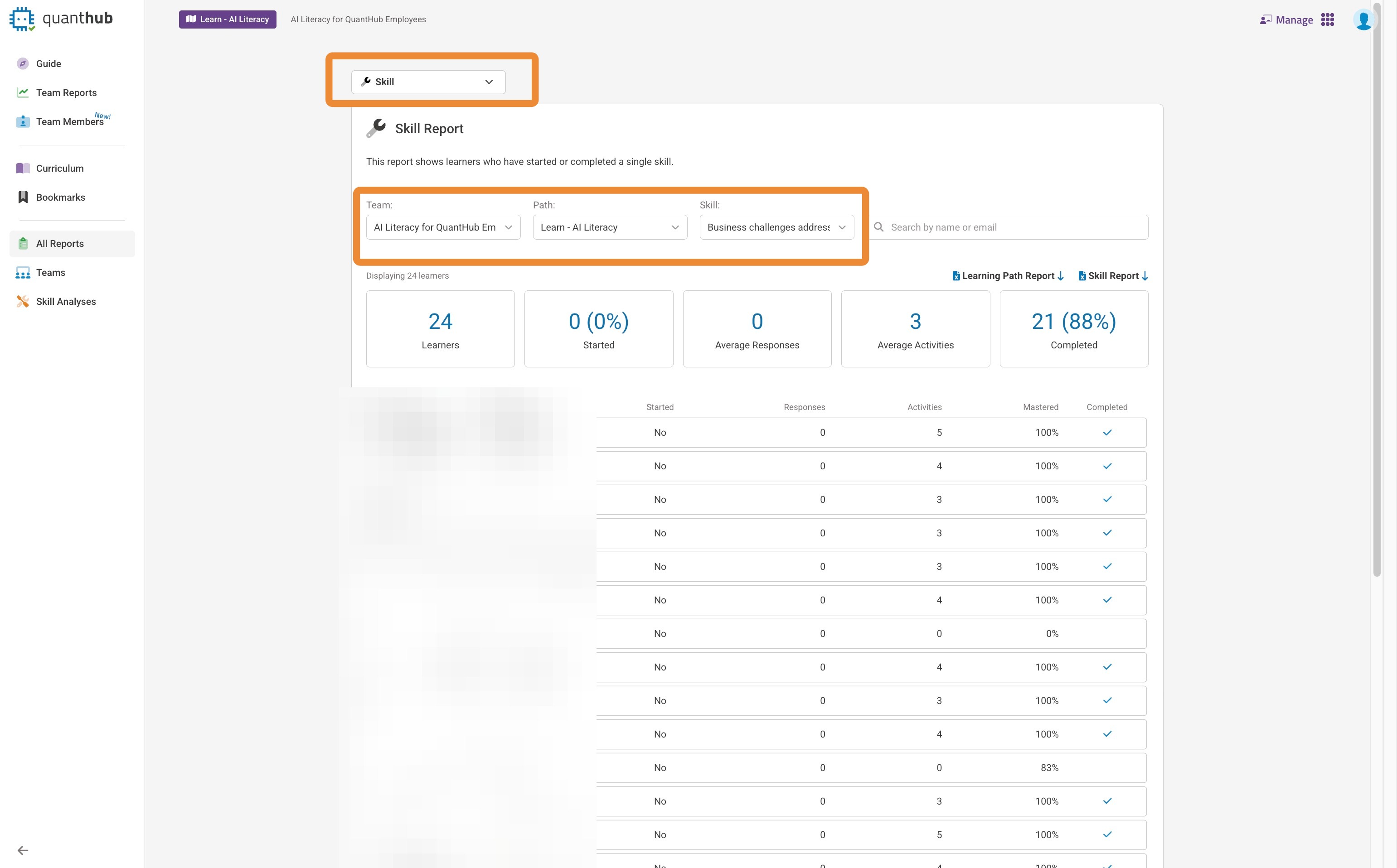
6. To see all team's progress, select "All Reports."

7. You can select the team, path, and learning activity you are trying to view.
Grade Scenario Activities
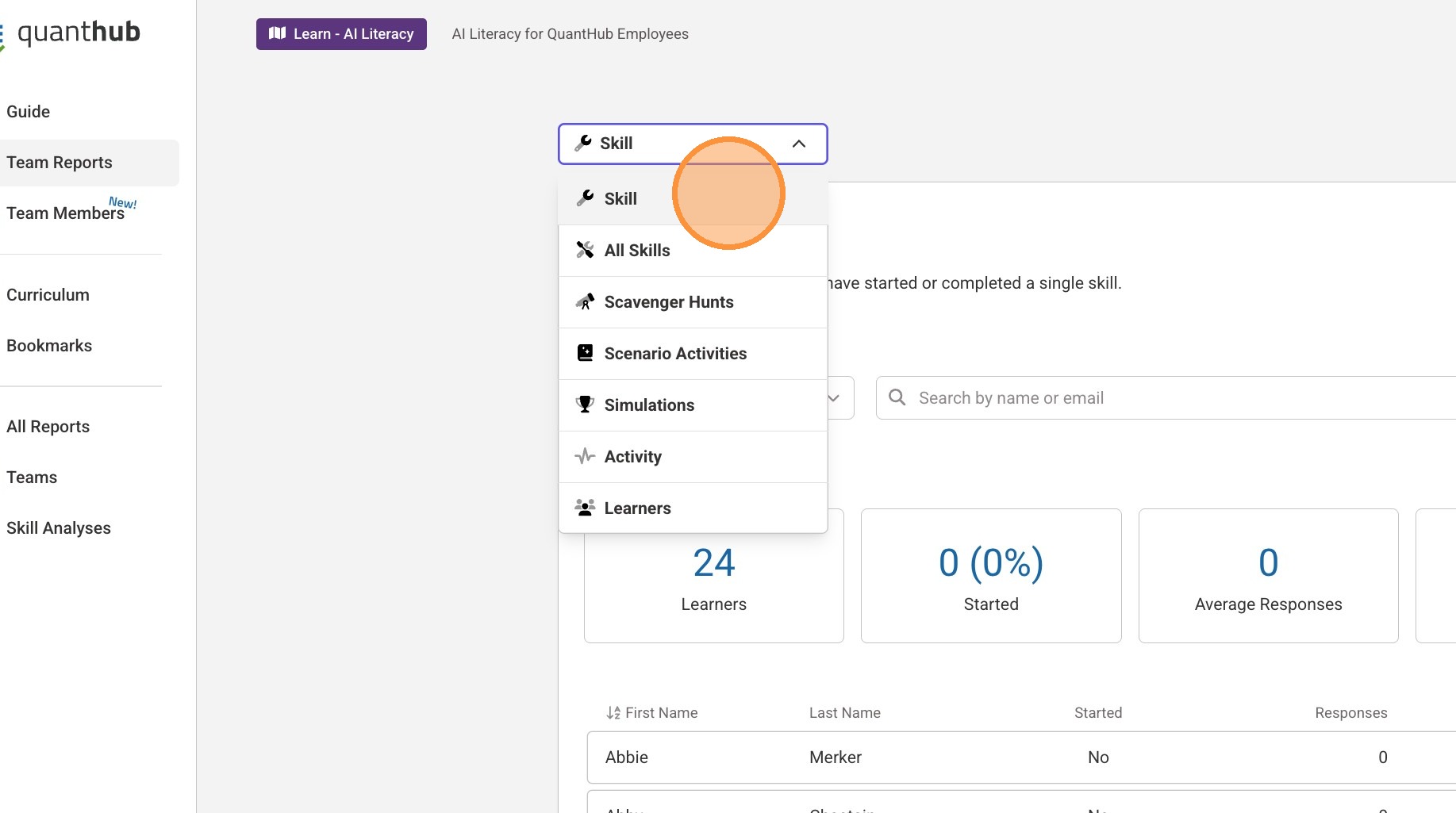
8. Select the drop down menu to toggle between different learning activities we have. The majority of the activities will be "Scenario Activities."
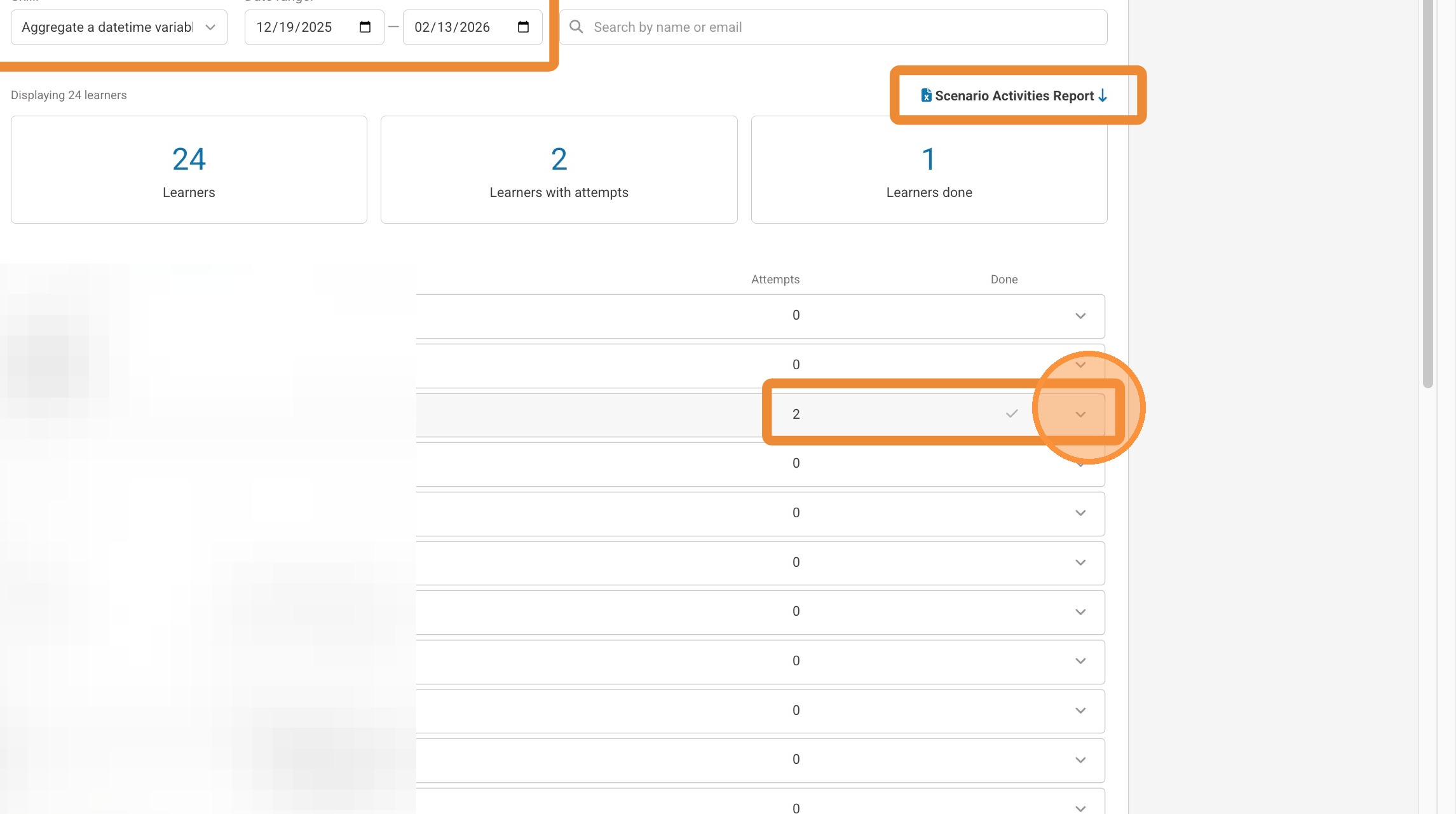
9. You can filter by which activity you would like to report on, the date range it was completed, and if the learners are done. You can also download a full report using the "scenario activities report" button.
Was this article helpful?
That’s Great!
Thank you for your feedback
Sorry! We couldn't be helpful
Thank you for your feedback
Feedback sent
We appreciate your effort and will try to fix the article