Watch the video below OR scroll down to view the steps listed out instead.
TABLE OF CONTENTS
Video Tutorial:
Step By Step Guide:
Create Your Section in QuantHub
1. Select your nine dot menu
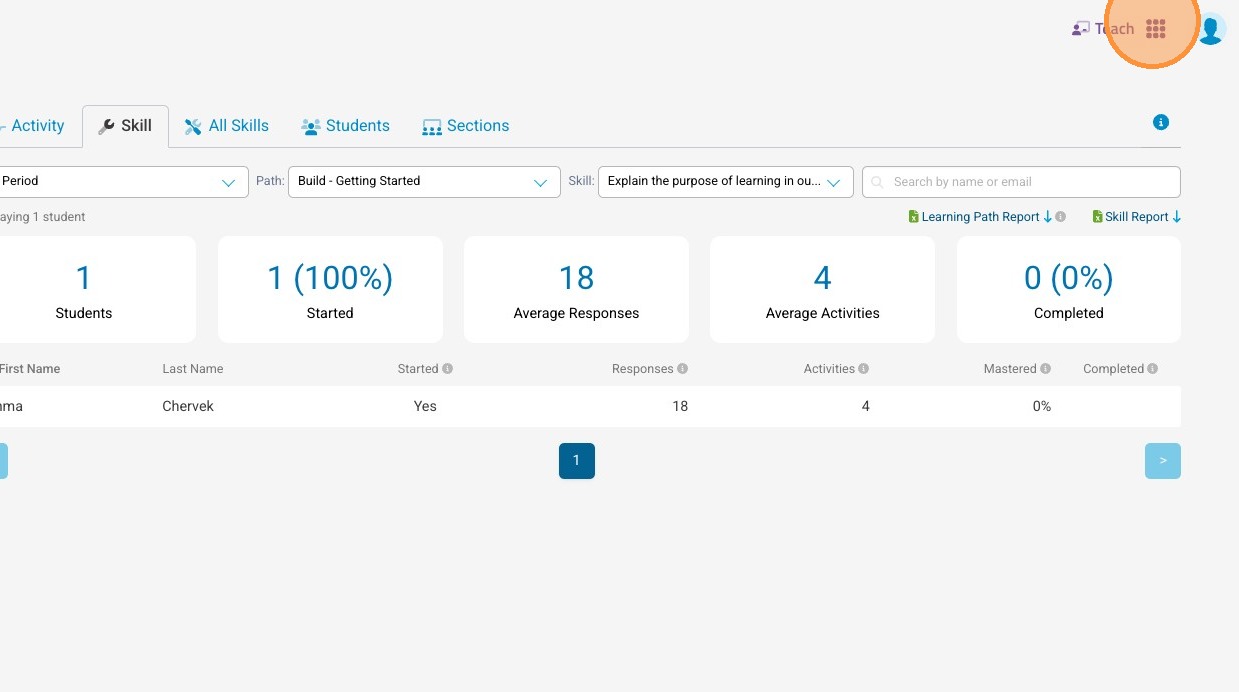
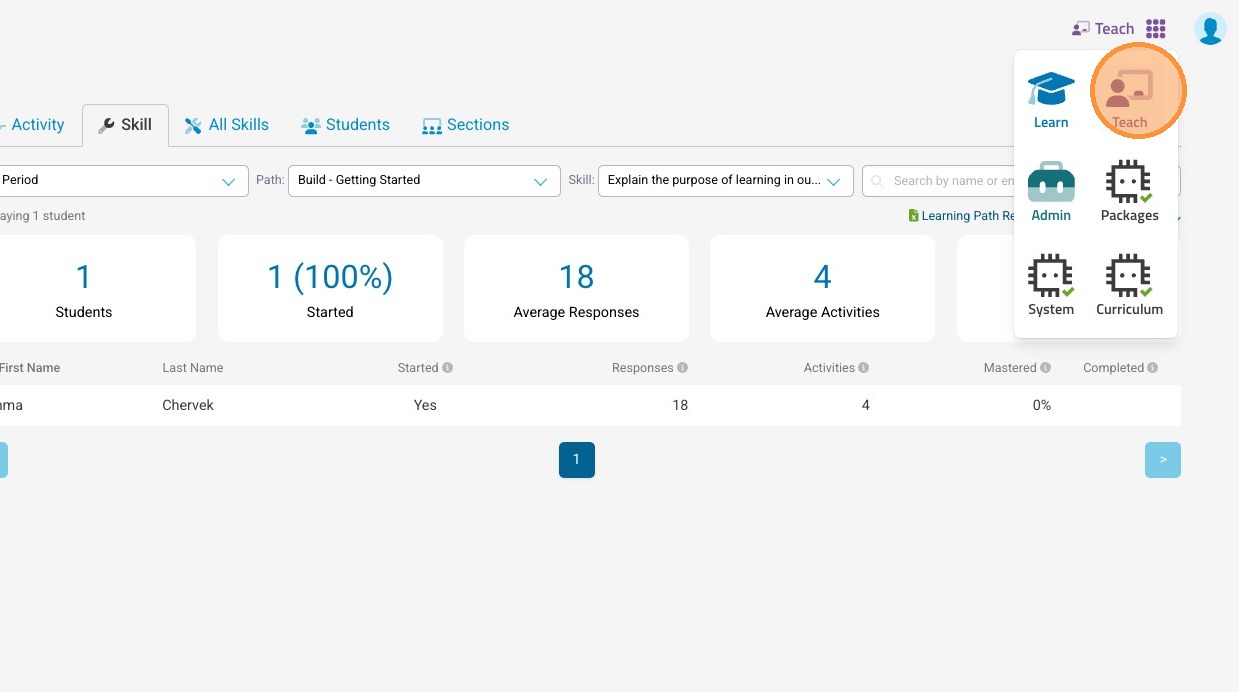
2. Select "Teach"
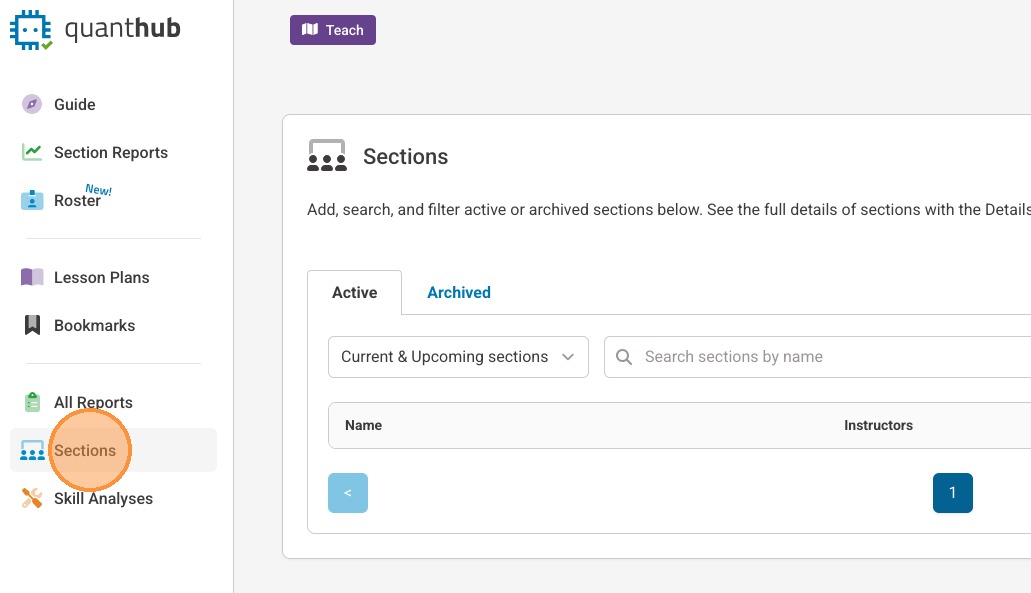
3. Select "Sections" in the left-side menu
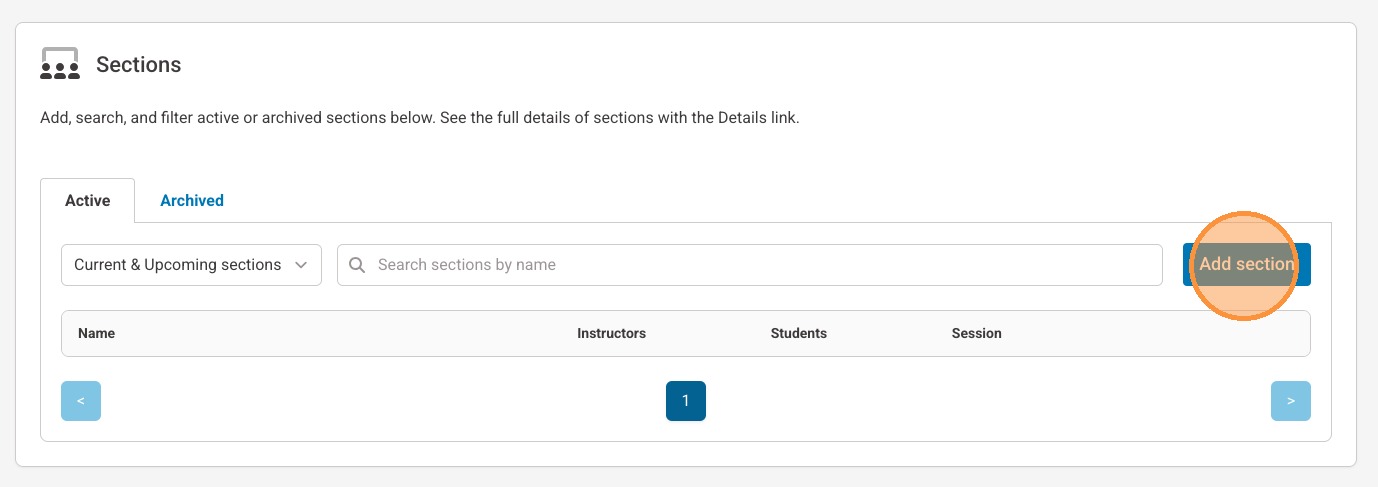
4. Select "Add section"
5. Give your section a name
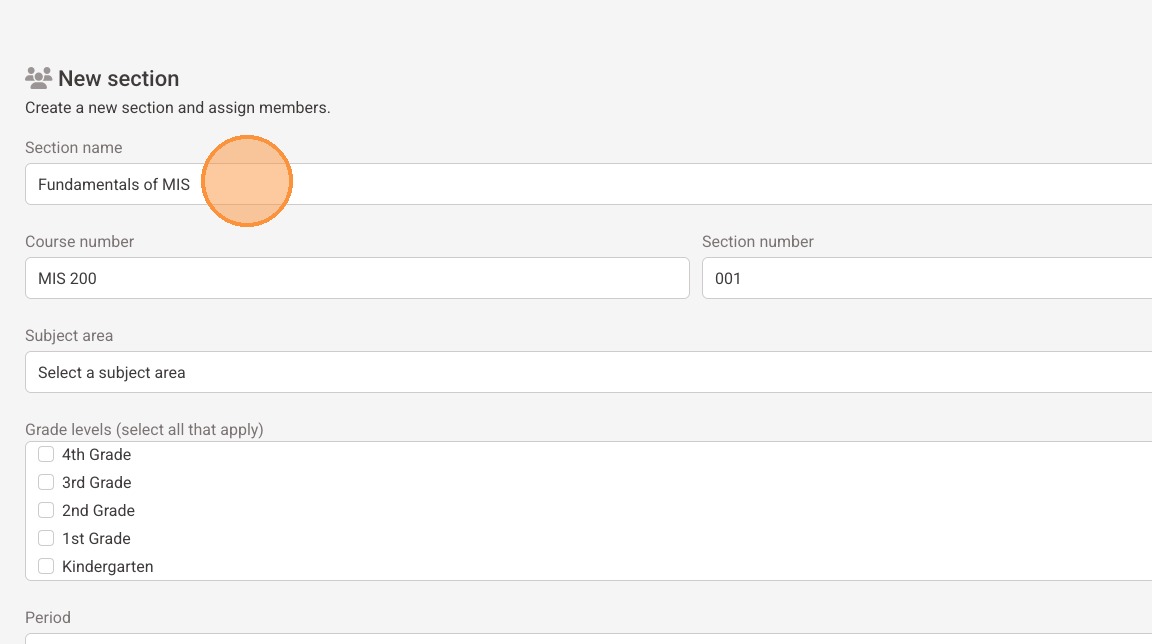
6. Enter the course number
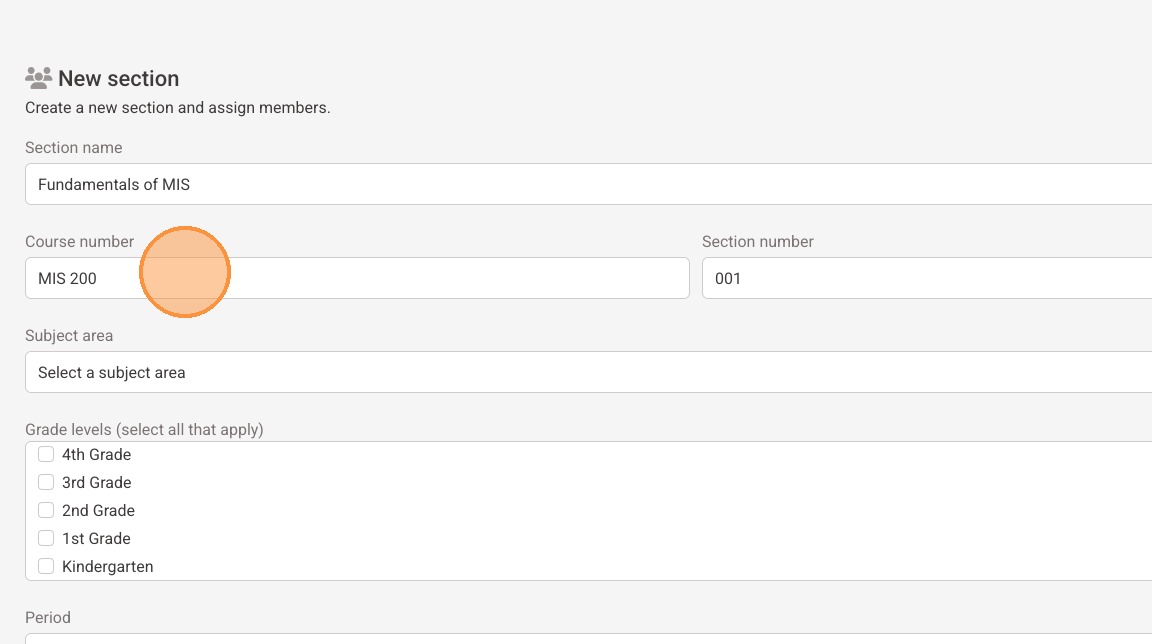
7. Enter the section number
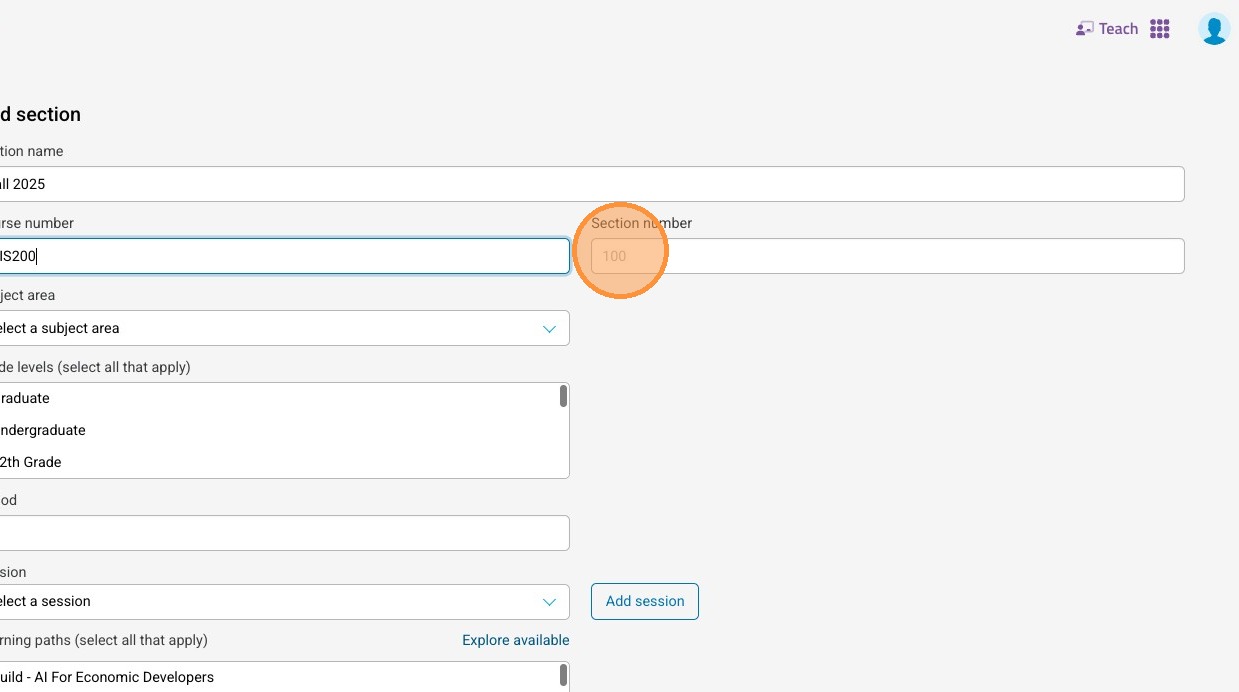
8. Select a session, if one exists
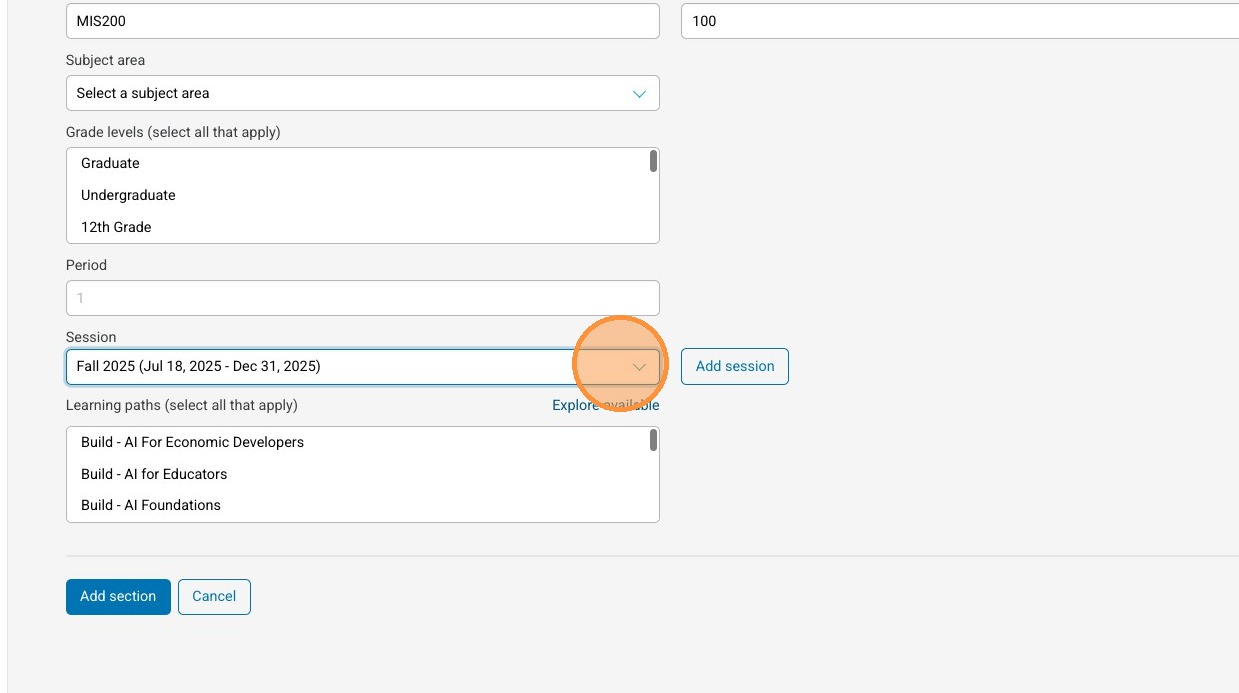
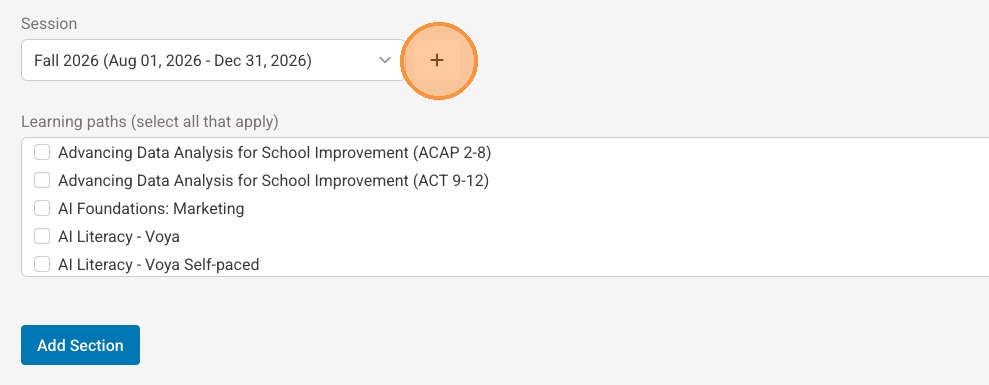
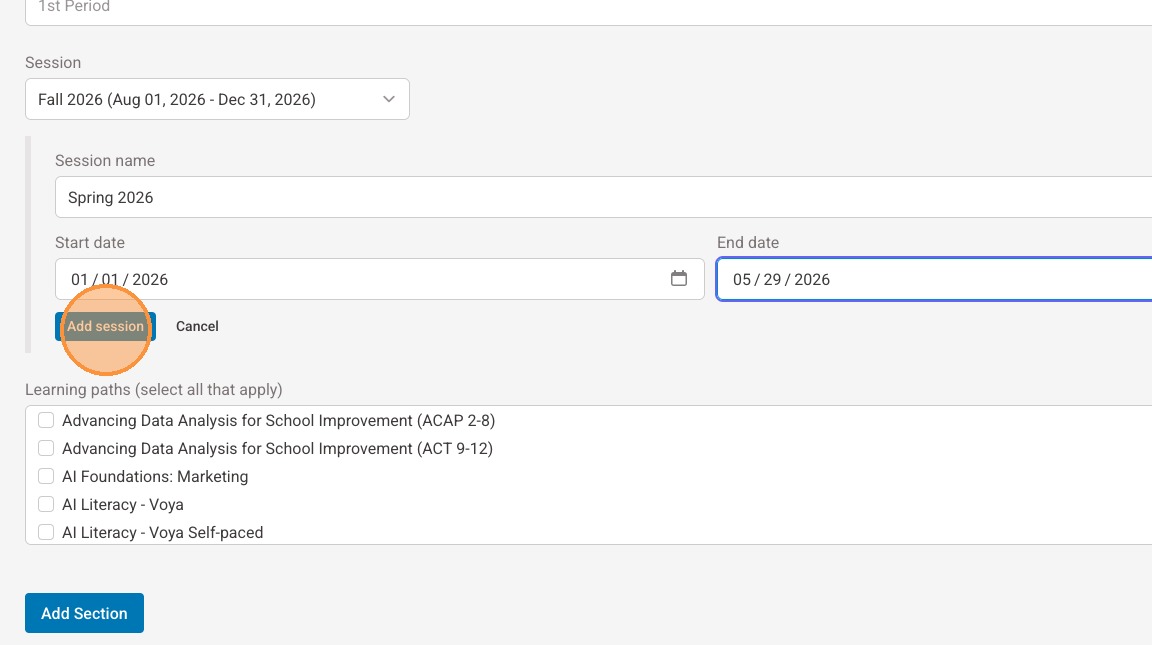
9. If a session does not already exist, select "+"
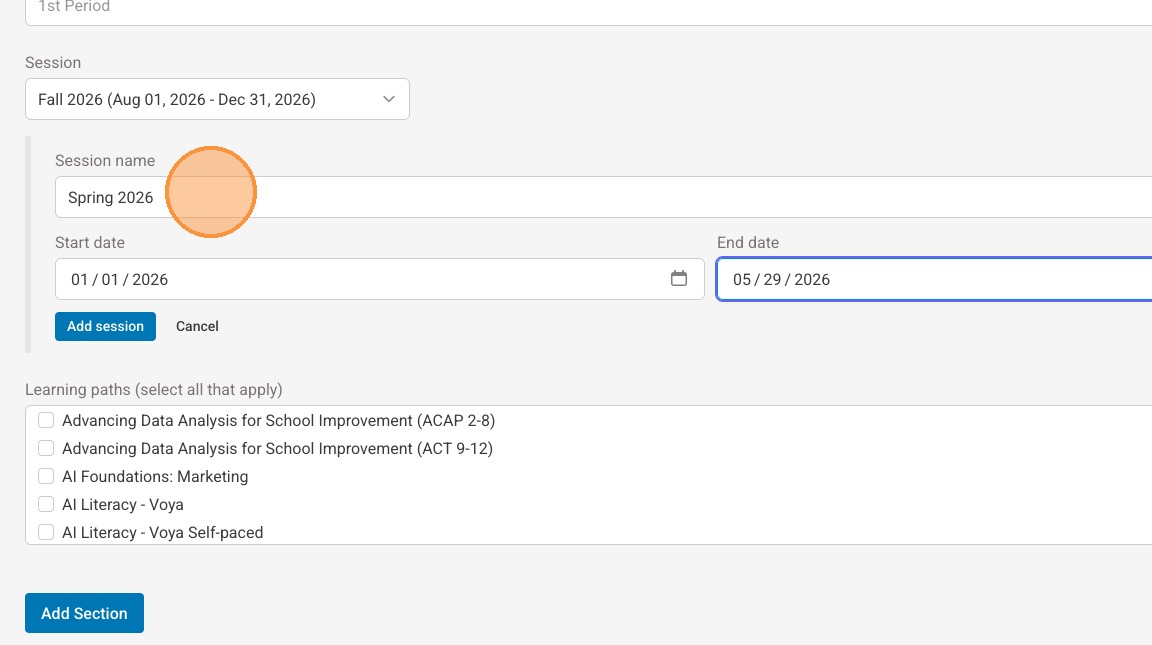
10. Enter a name for the session
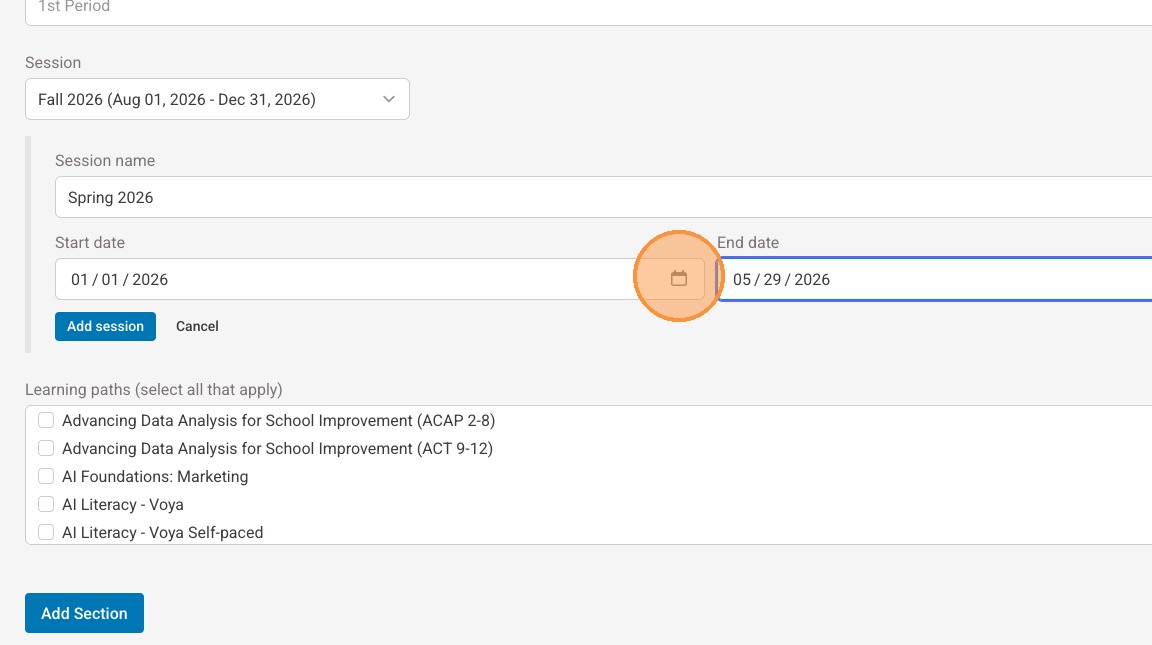
11. Use the date picker to select the start date for the session
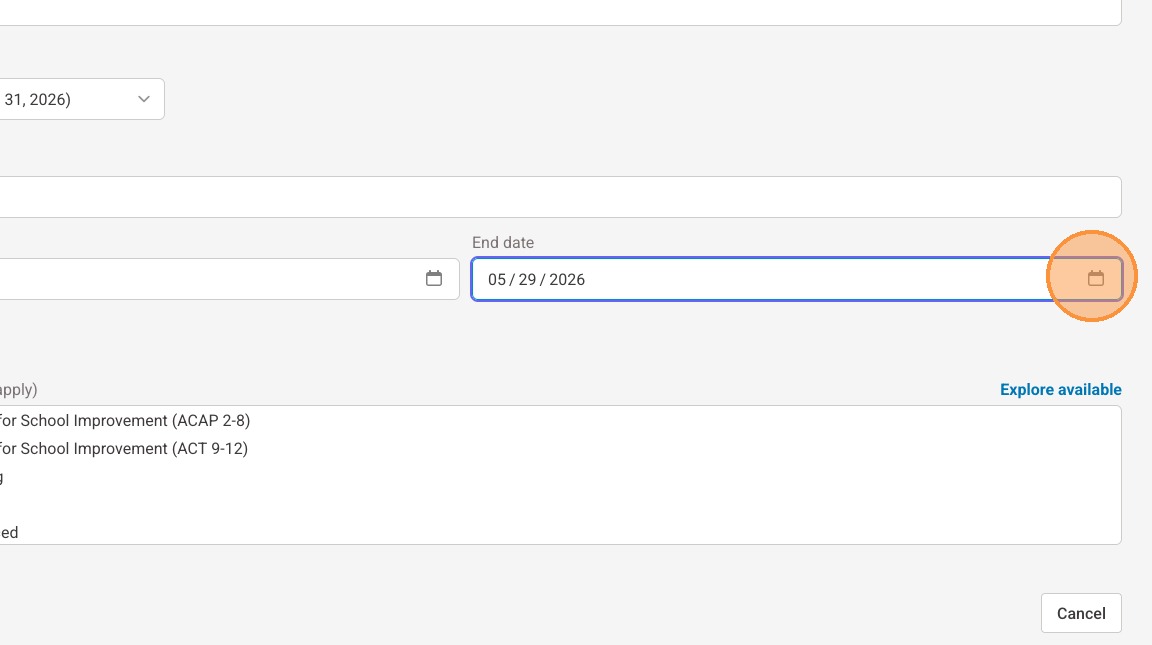
12. Use the date picker to select the end date for the session
13. Select "Add session"
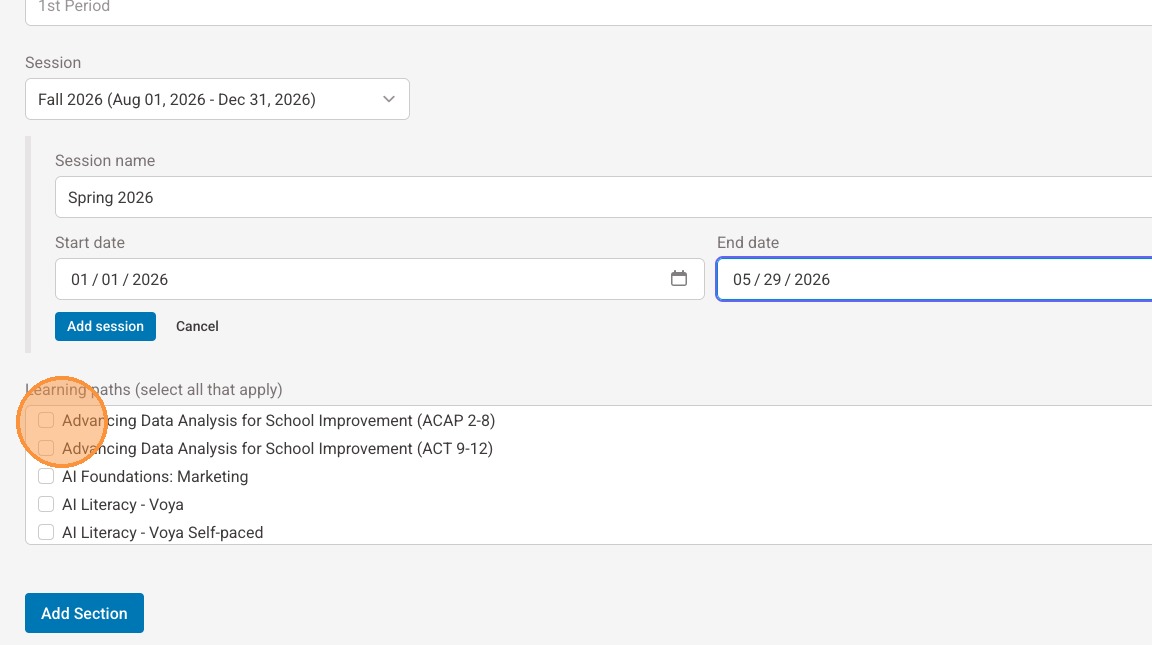
14. Select the appropriate learning path(s) for your course
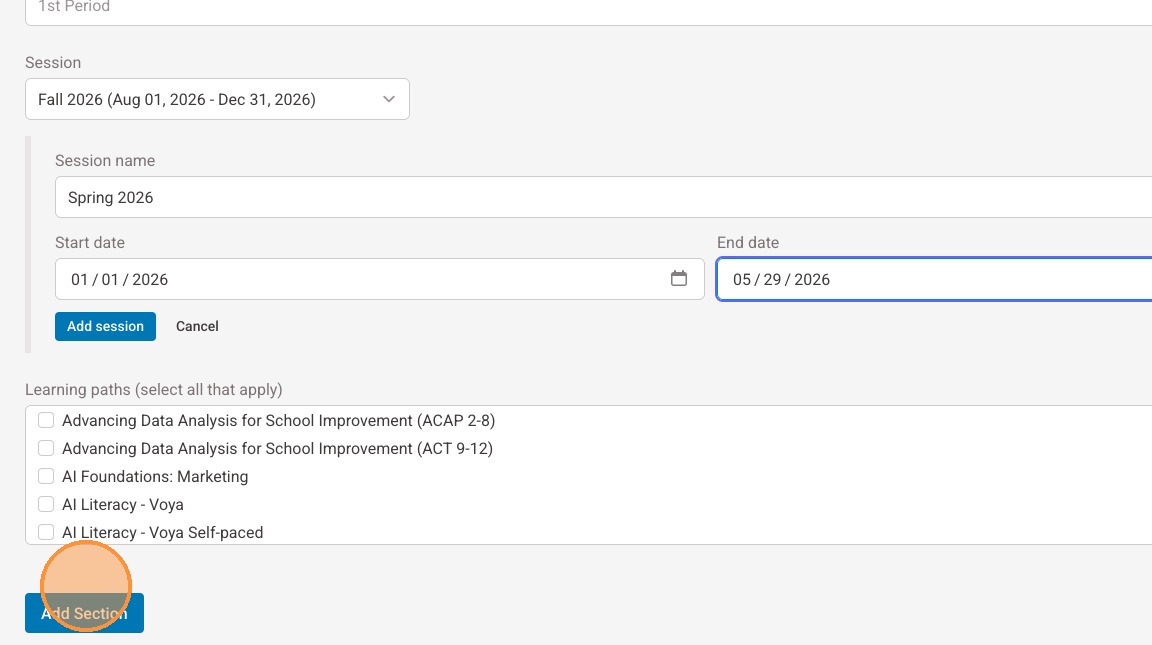
15. Select "Add section"
Roster Your Section in D2L
16. Next, navigate to your D2L
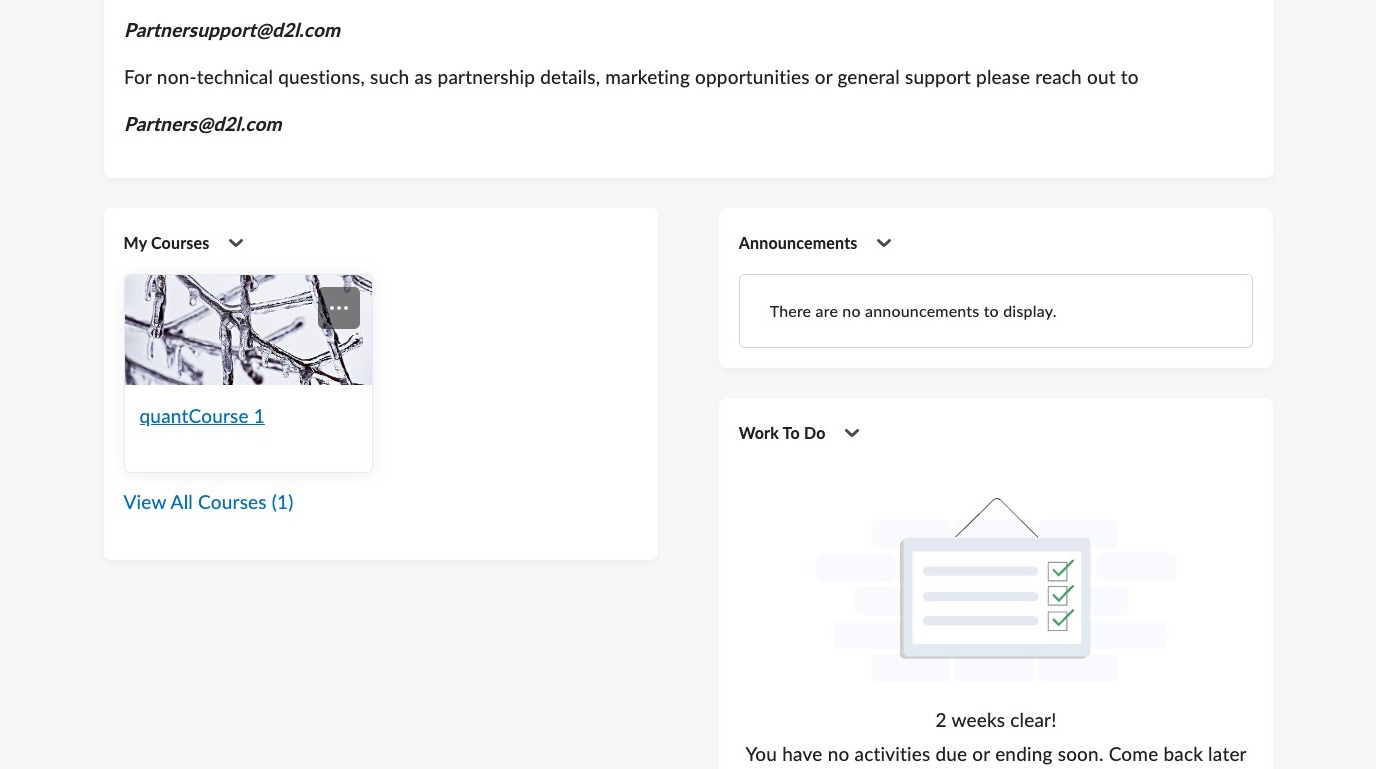
17. Select the course you wish to roster
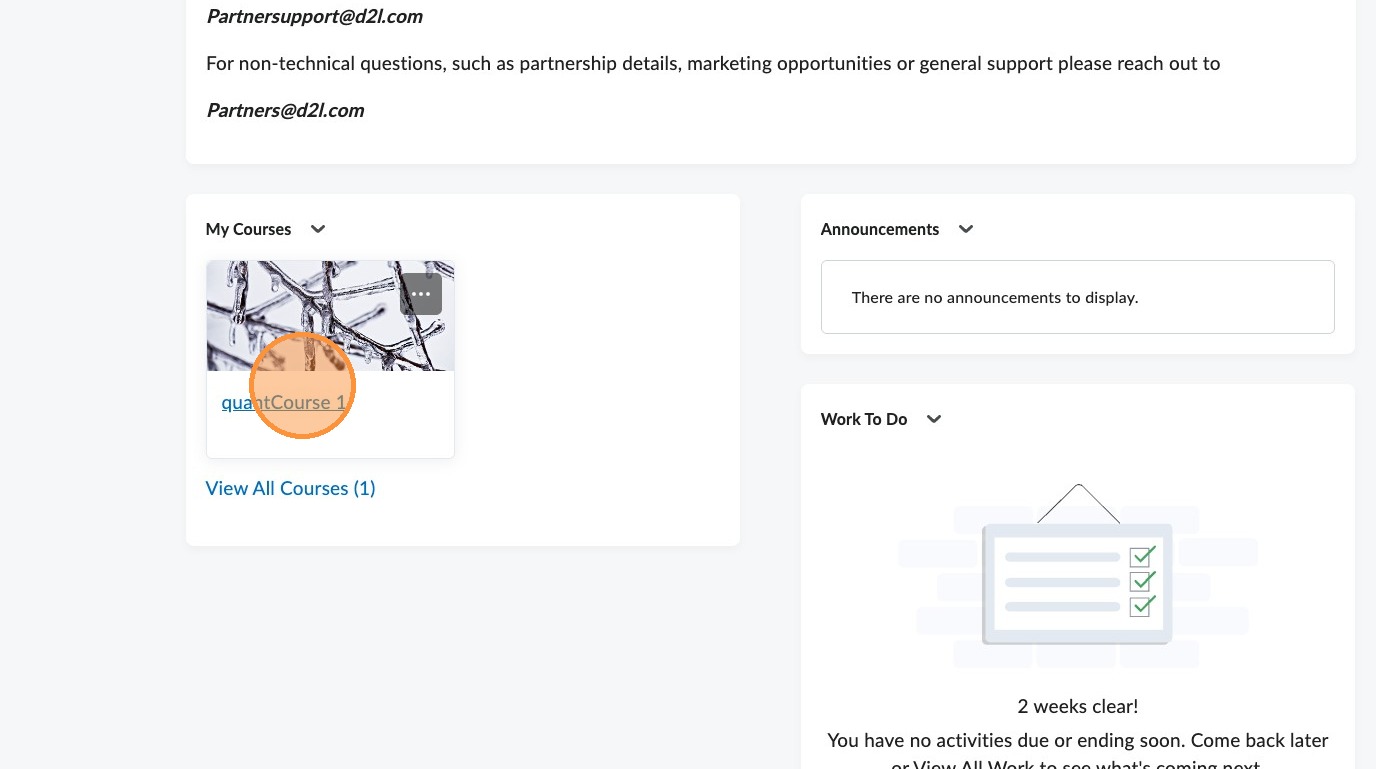
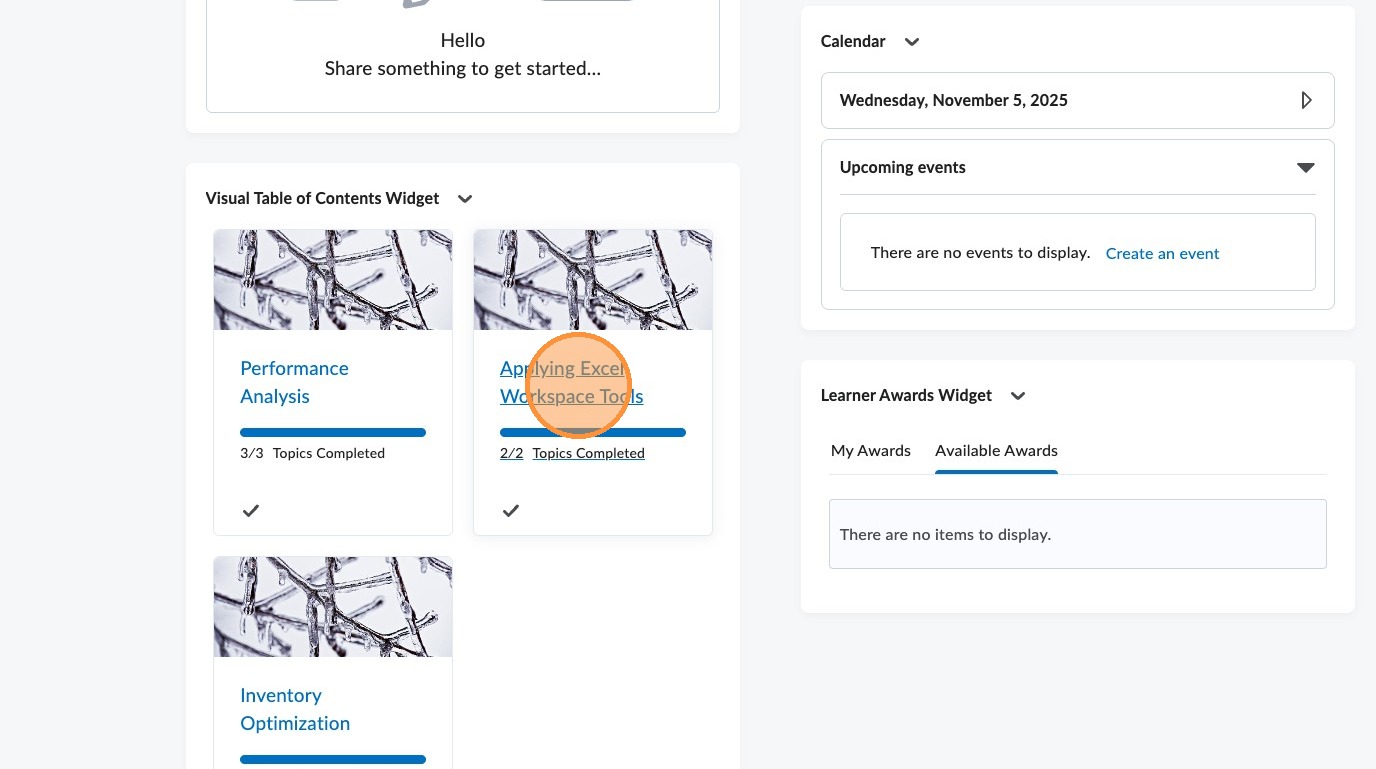
18. Select on any module in the course
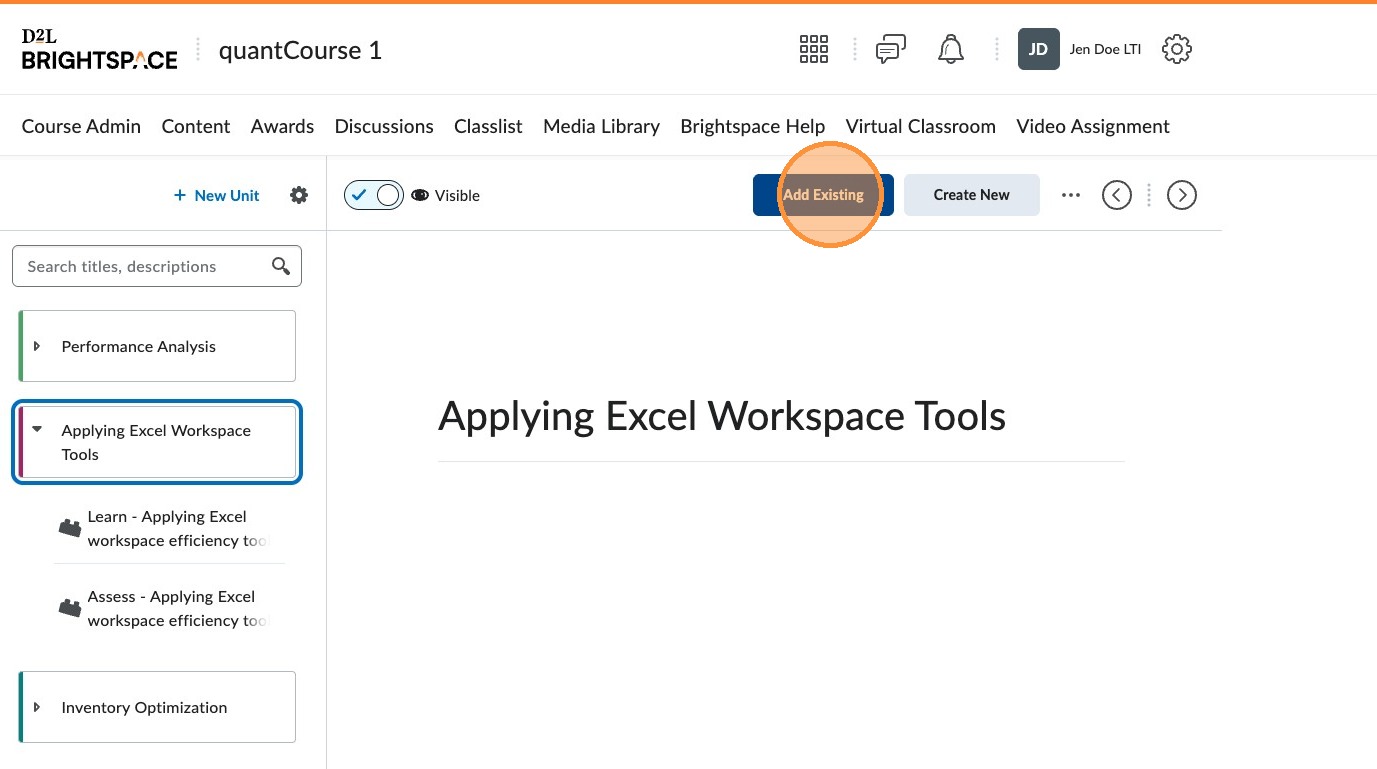
19. Select "Add Existing"
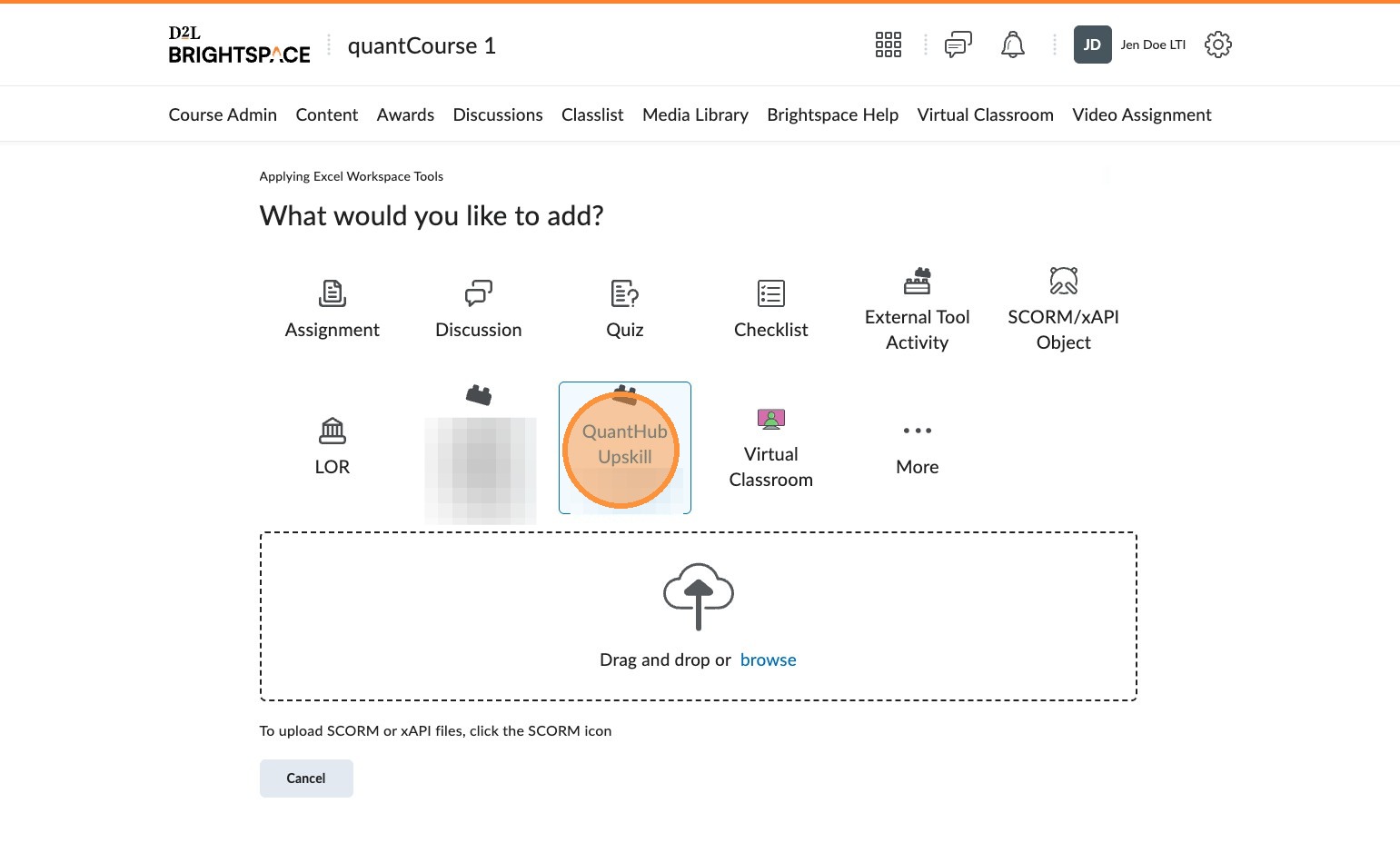
20. Select "QuantHub Upskill"
21. Select "Roster"
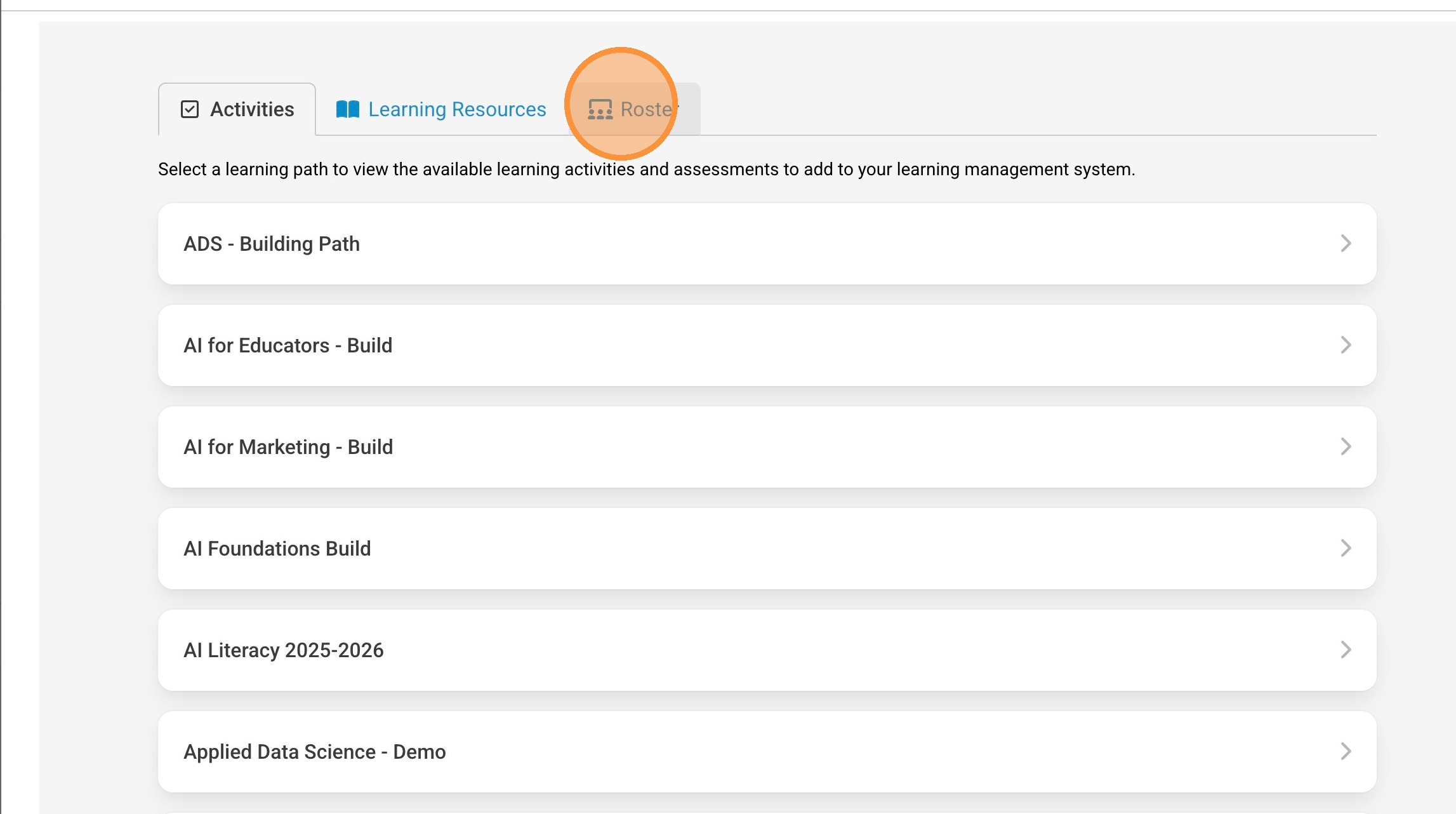
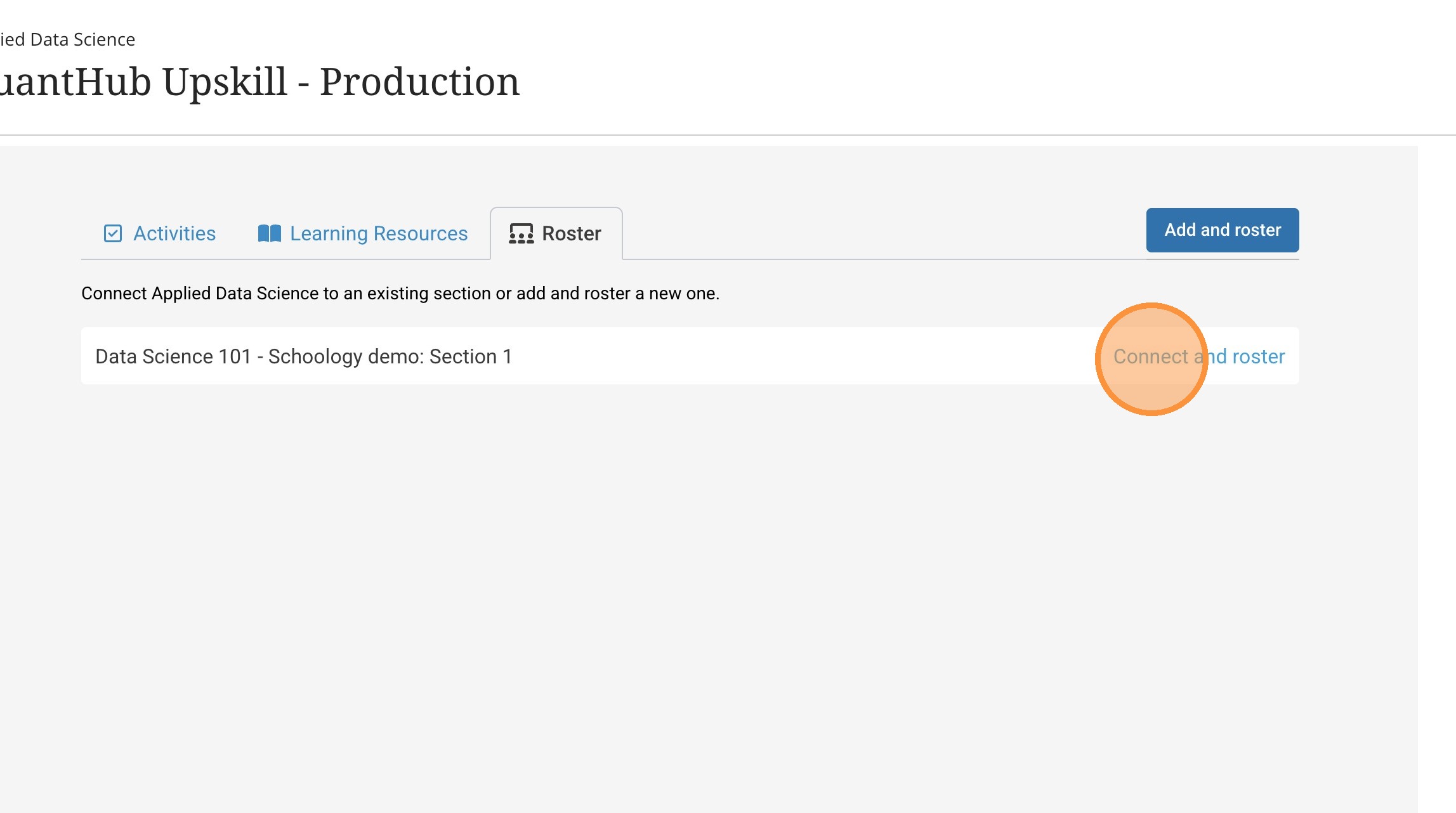
22. To roster the already created section select the "Connect and Roster" associated with that section.
Was this article helpful?
That’s Great!
Thank you for your feedback
Sorry! We couldn't be helpful
Thank you for your feedback
Feedback sent
We appreciate your effort and will try to fix the article