1. In this tutorial, we will show you how to quickly add QuantHub assignments within Schoology. Navigate to the desired course.
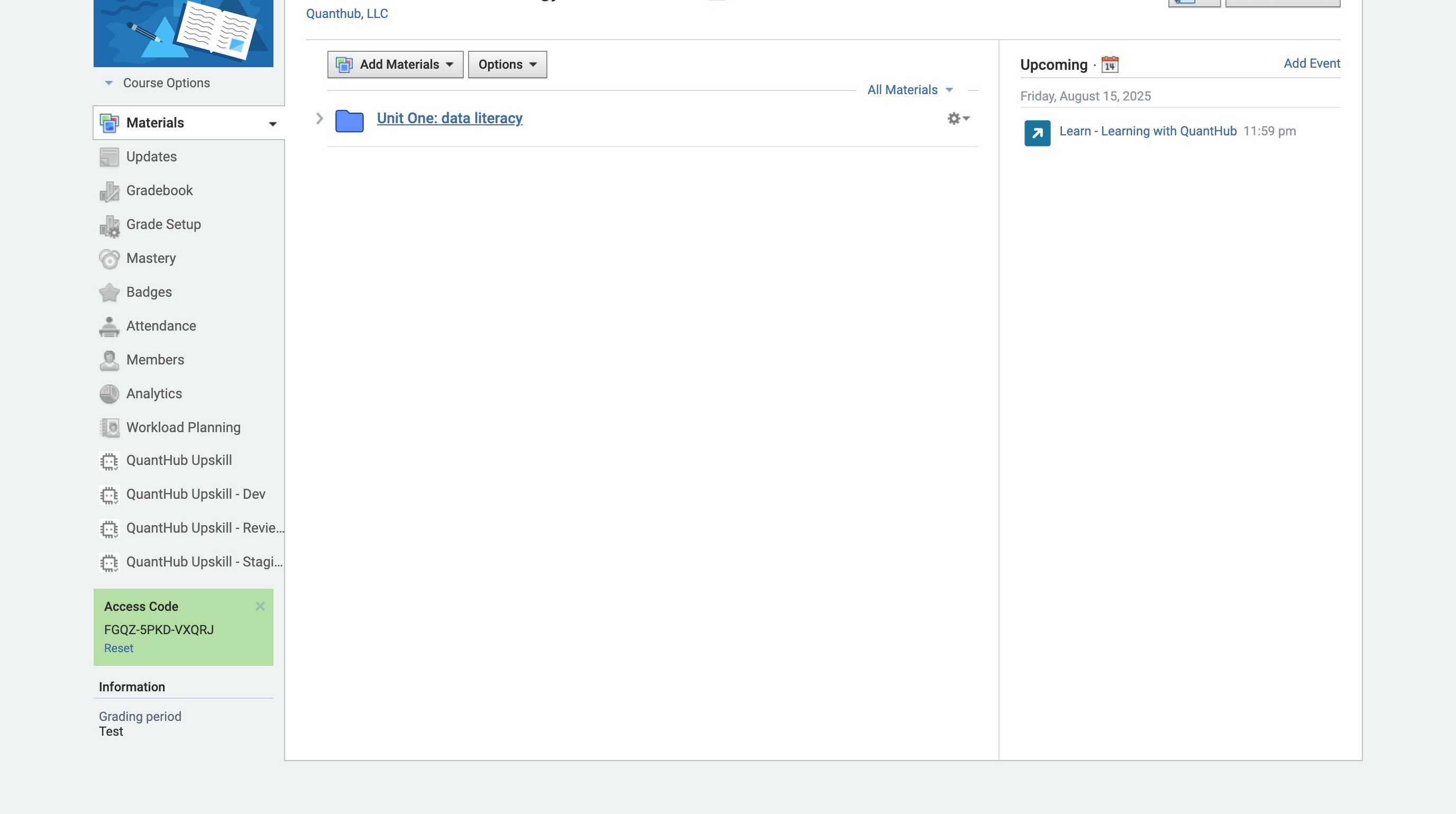
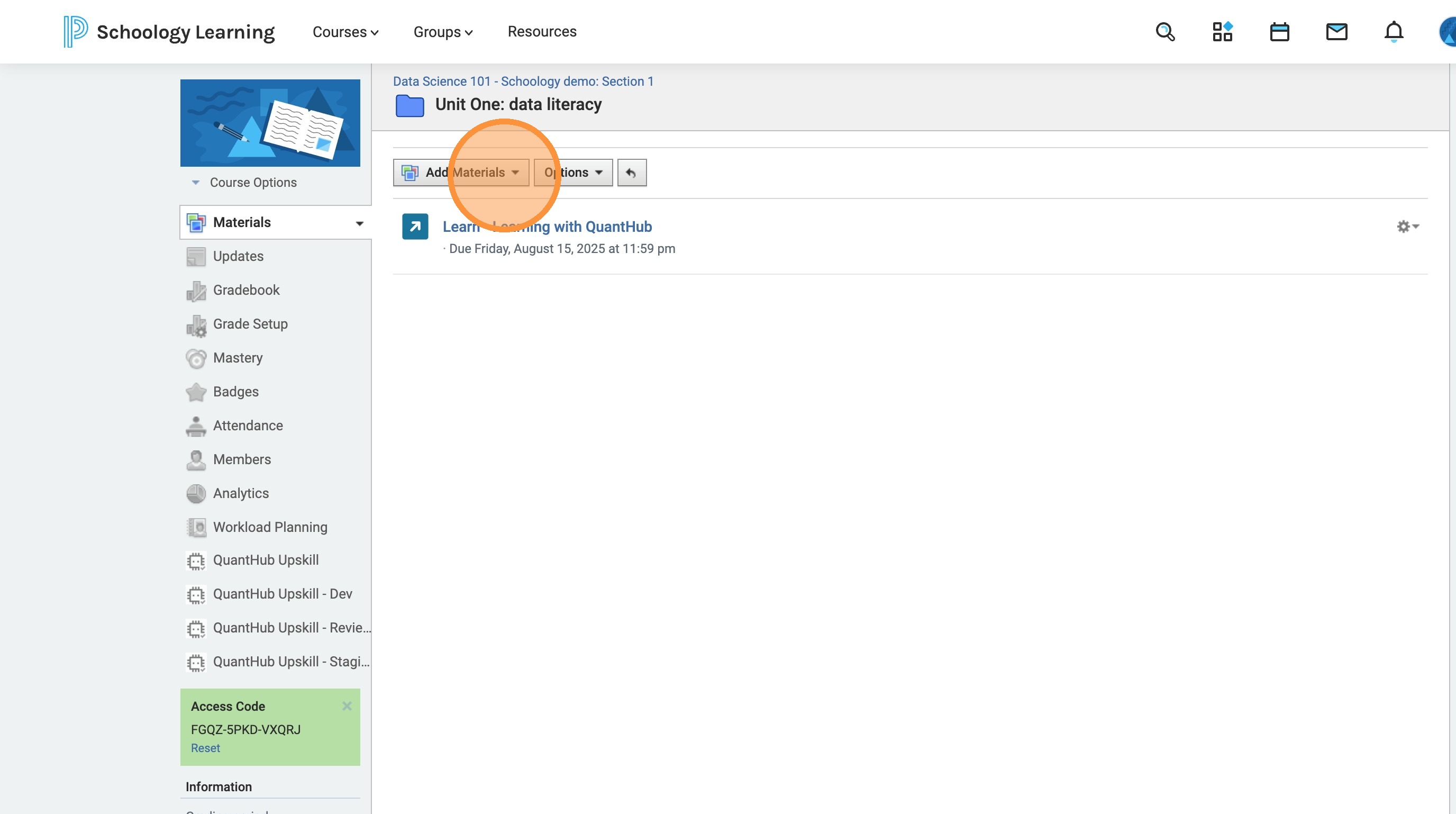
2. Select "Add Materials"
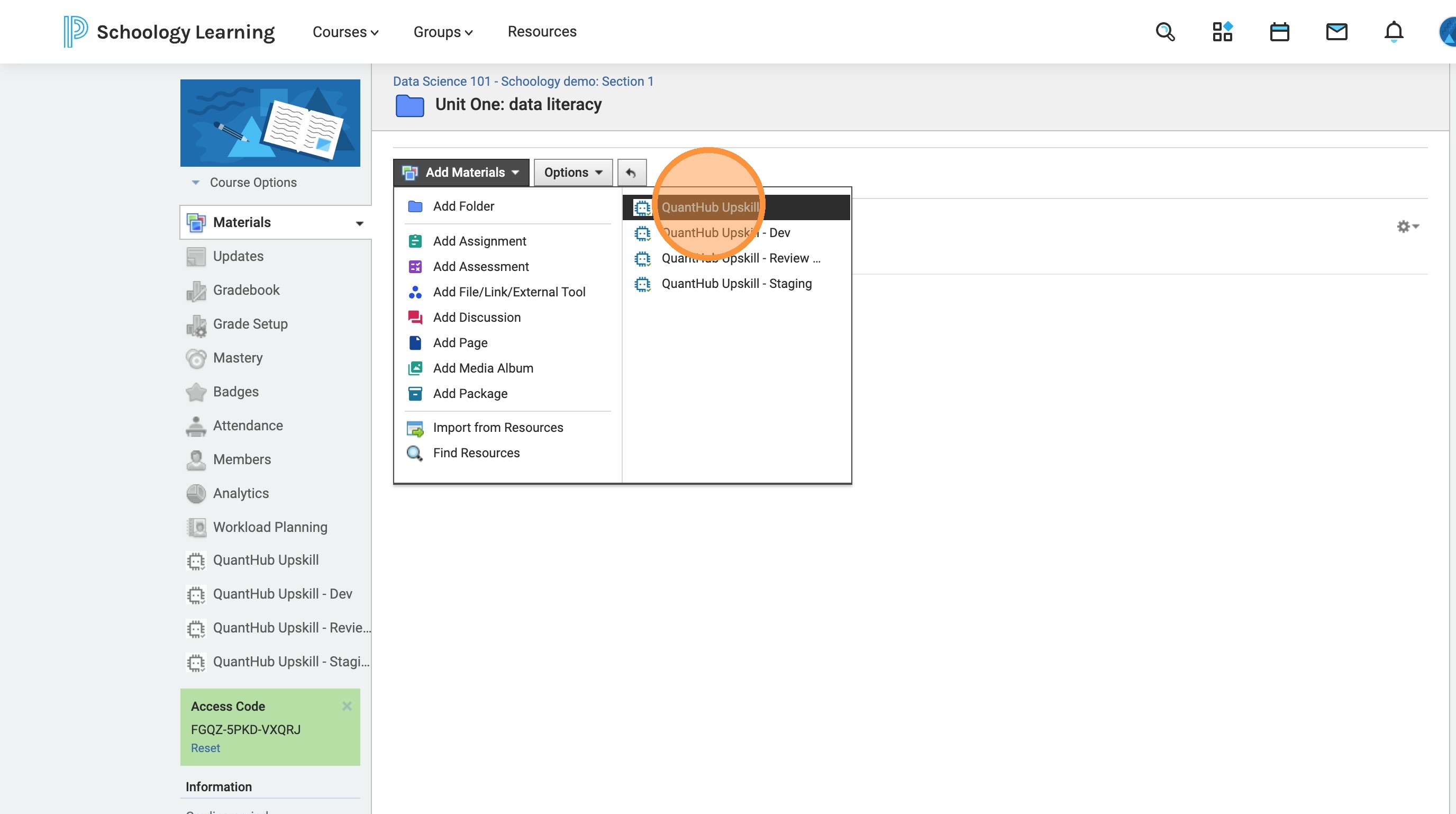
3. Select the "QuantHub Upskill" app.
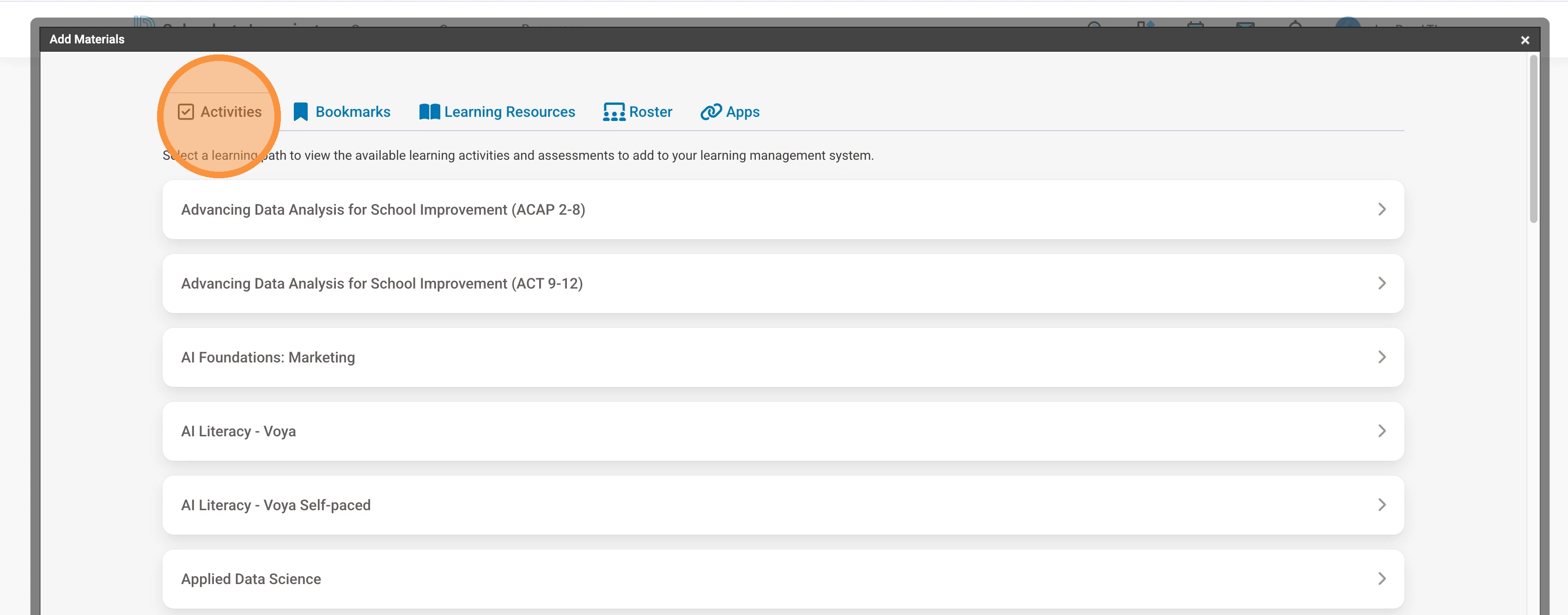
4. Select "Activities"
Activities are categorized within our pre-built learning paths. If you don't know where to start, the "Data Citizen" path is a great place!
Learning resources are individual articles. They are a great way to get technical reading in for students!
5. Select the desired learning path or learning resource.
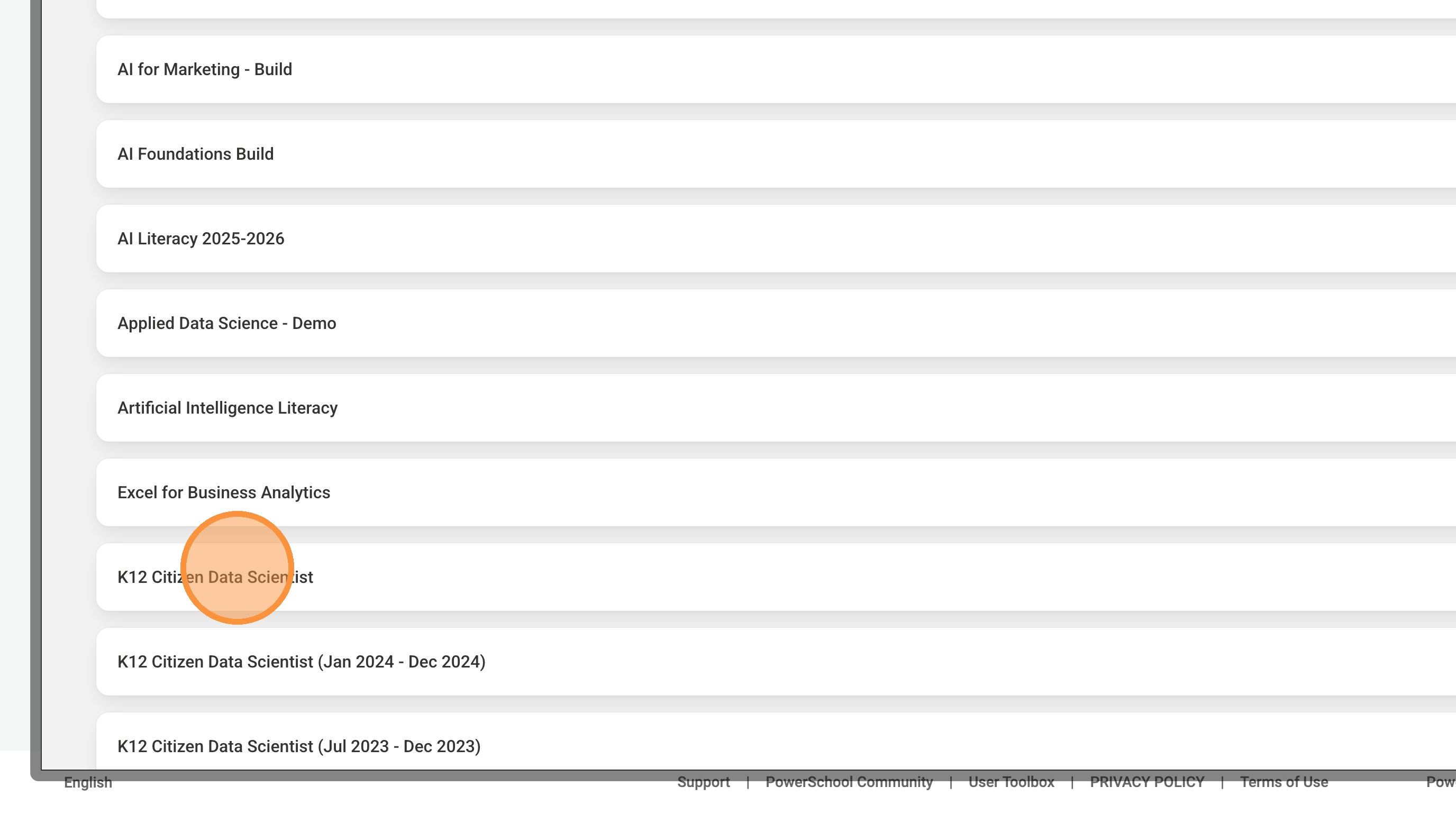
6. Select the topic you want your students to master.
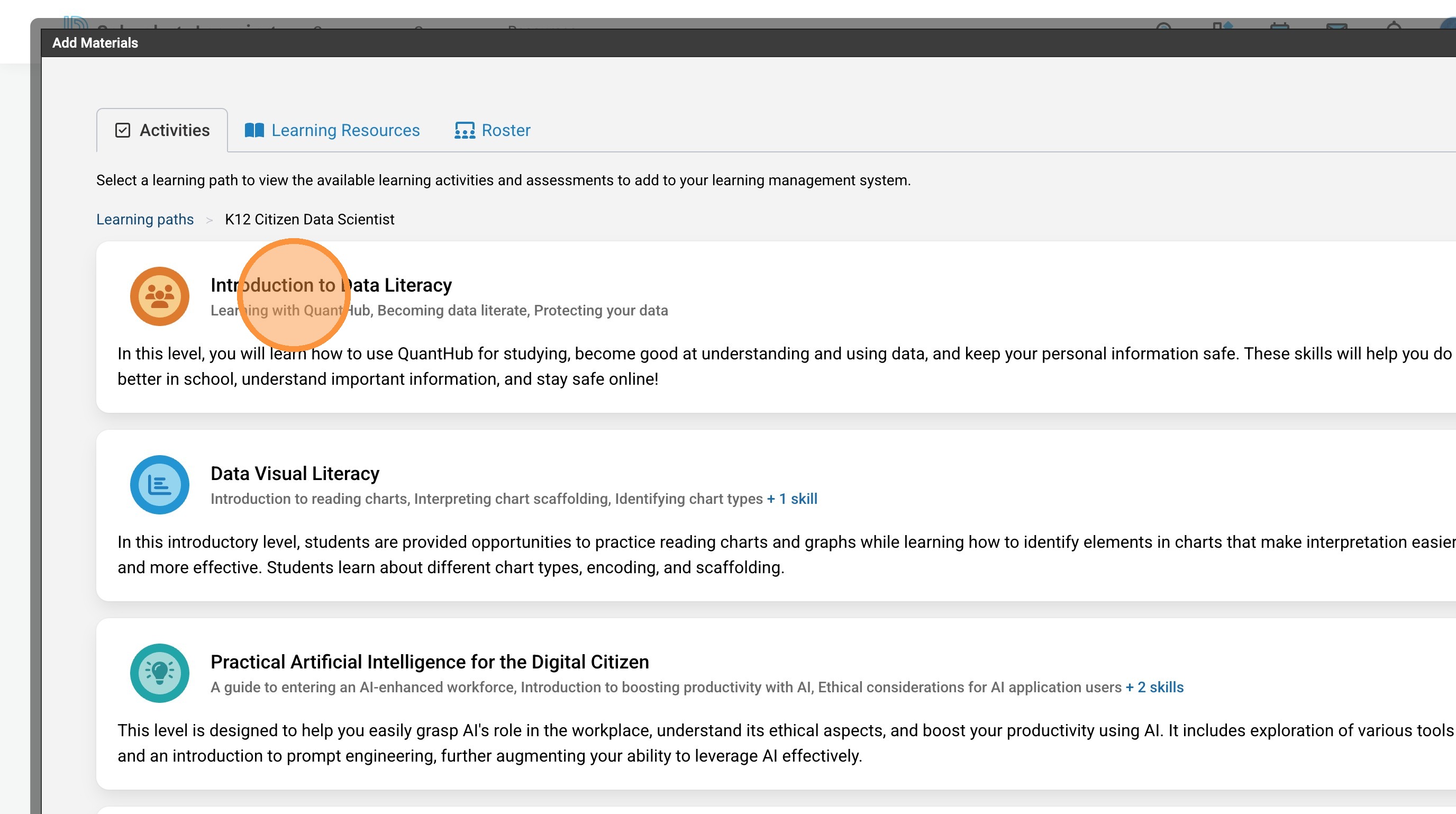
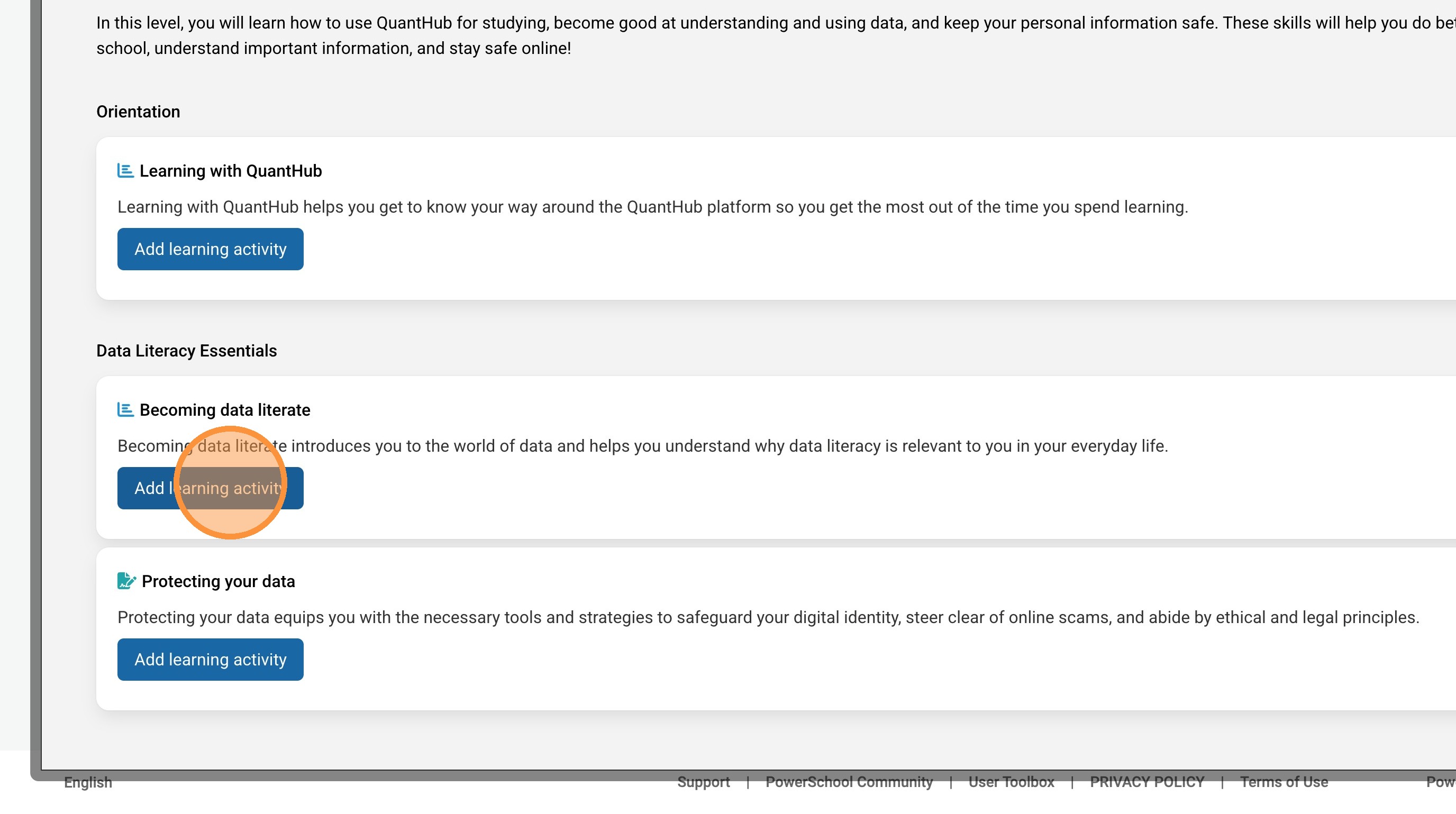
7. Select the desired lesson for students to complete.
8. Click the "Add to LMS gradebook" field. This will automatically grade your students based on how much of the skill they have mastered. If you do not select this, you can find student progress within the QuantHub platform under "Insights."
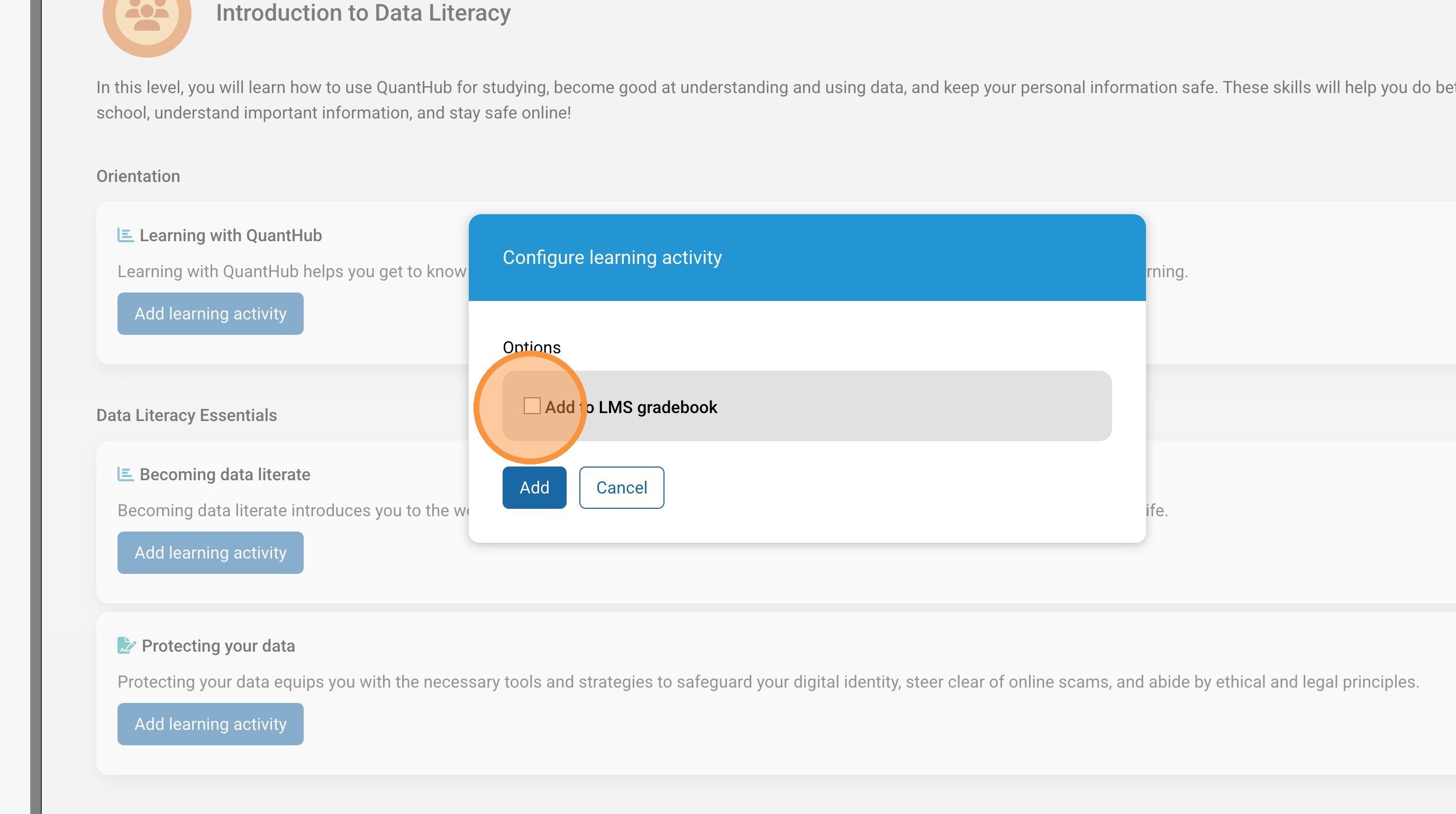
9. Select "Add"
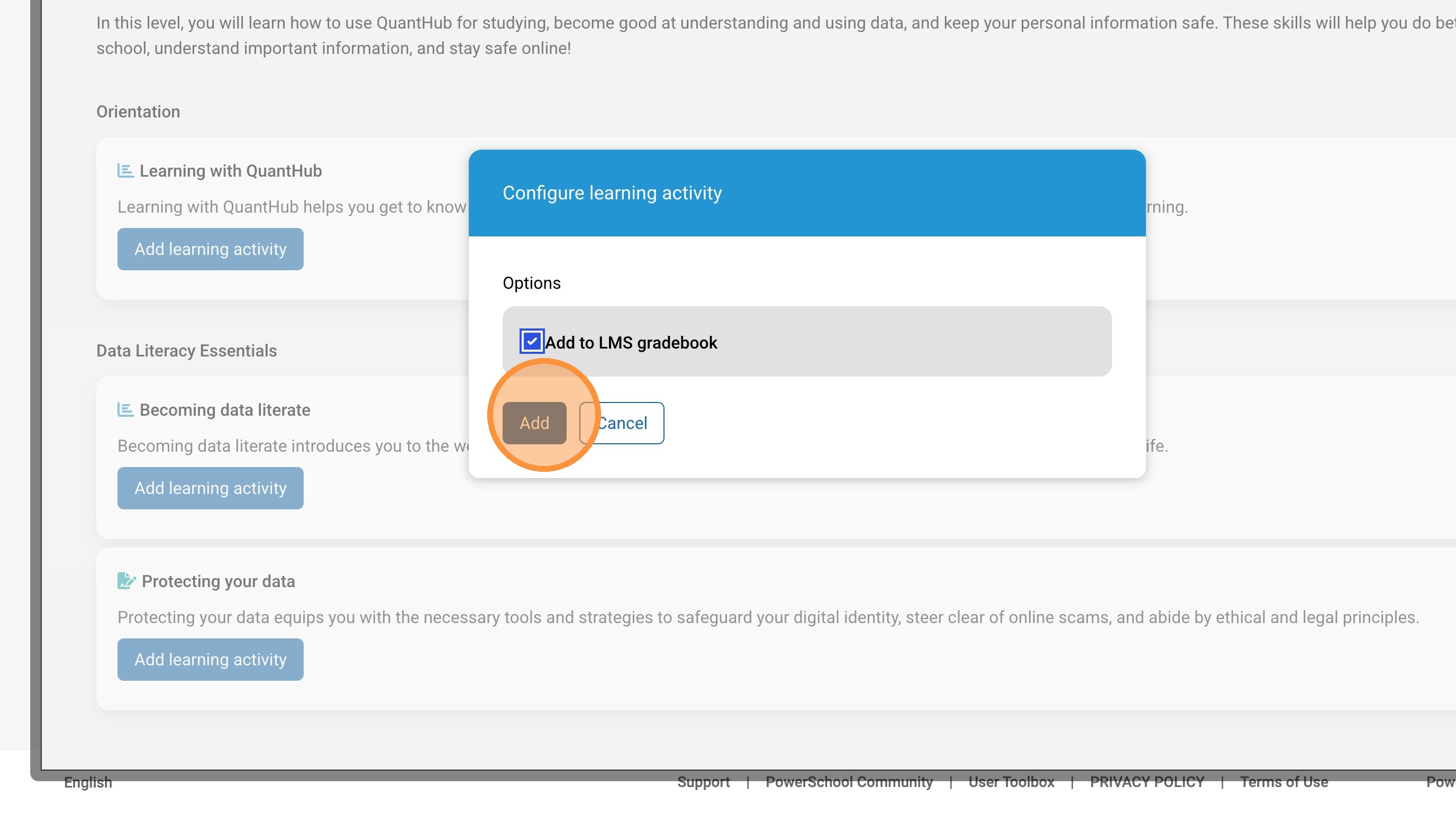
10. When you do this step, the assignment will automatically appear in the folder or course you were in. To set up the final steps, select the settings option next to the new assignment.
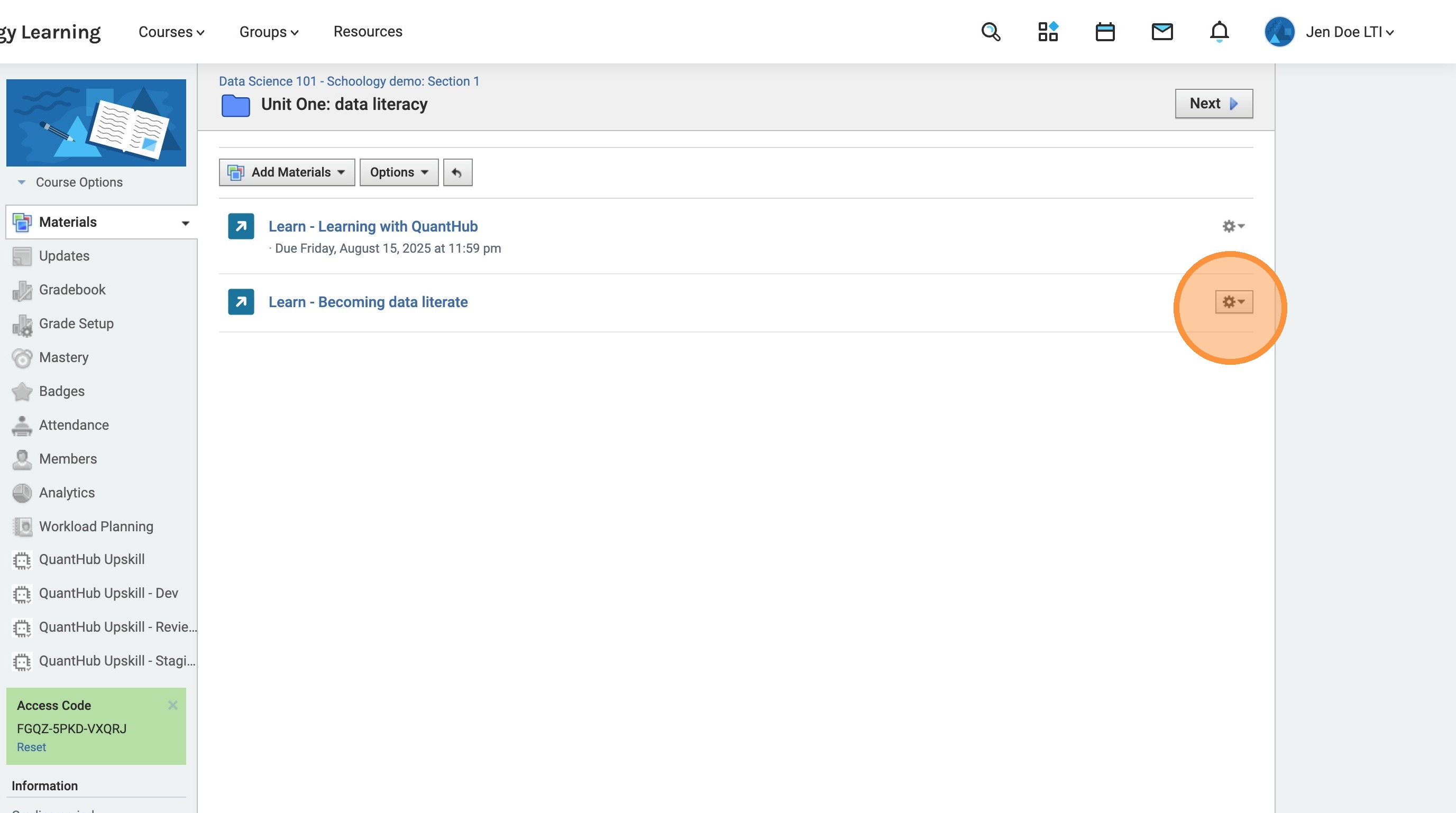
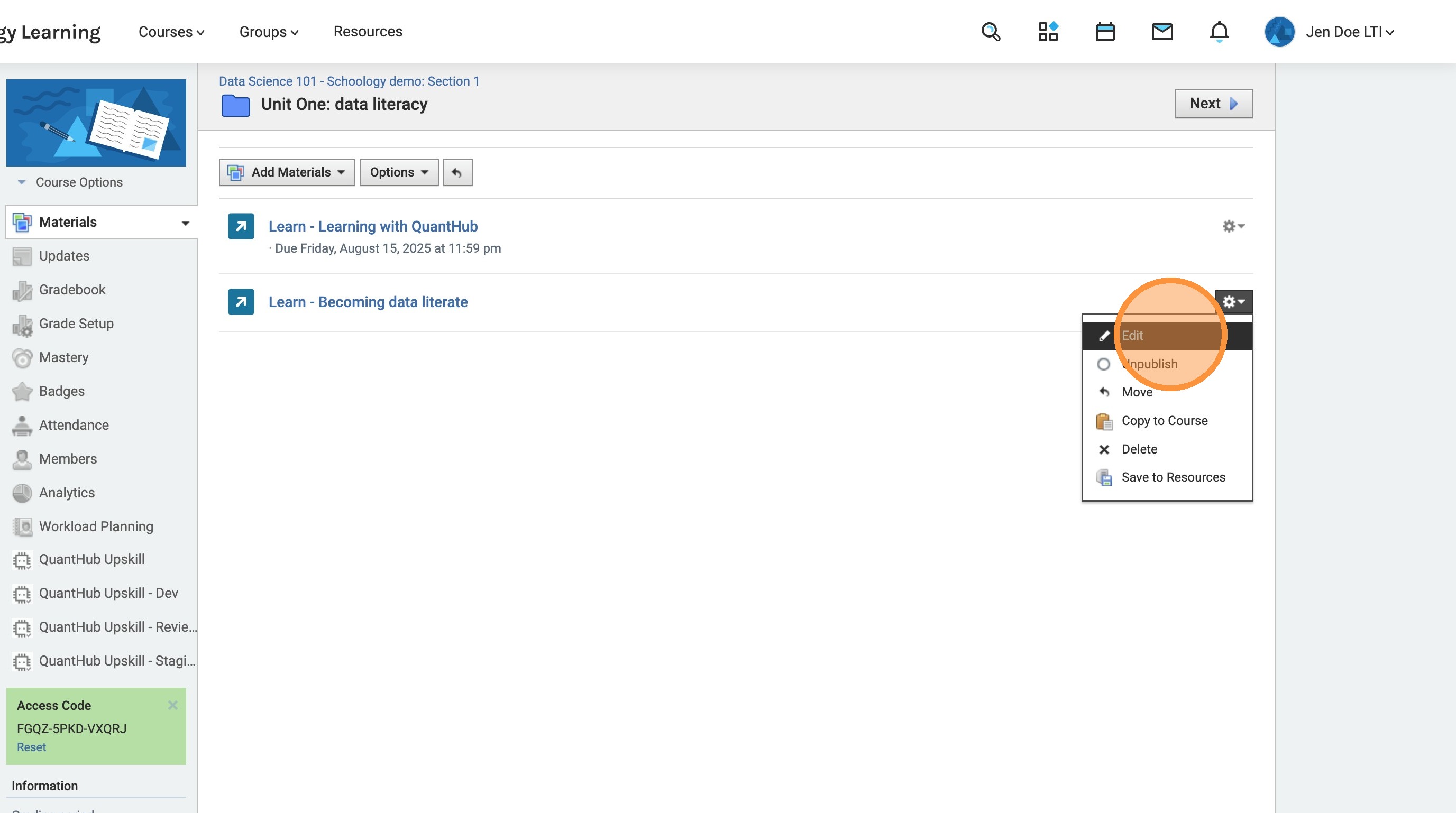
11. Select "Edit"
12. You can name the assignment what you want. We have the skill name as a preset title.
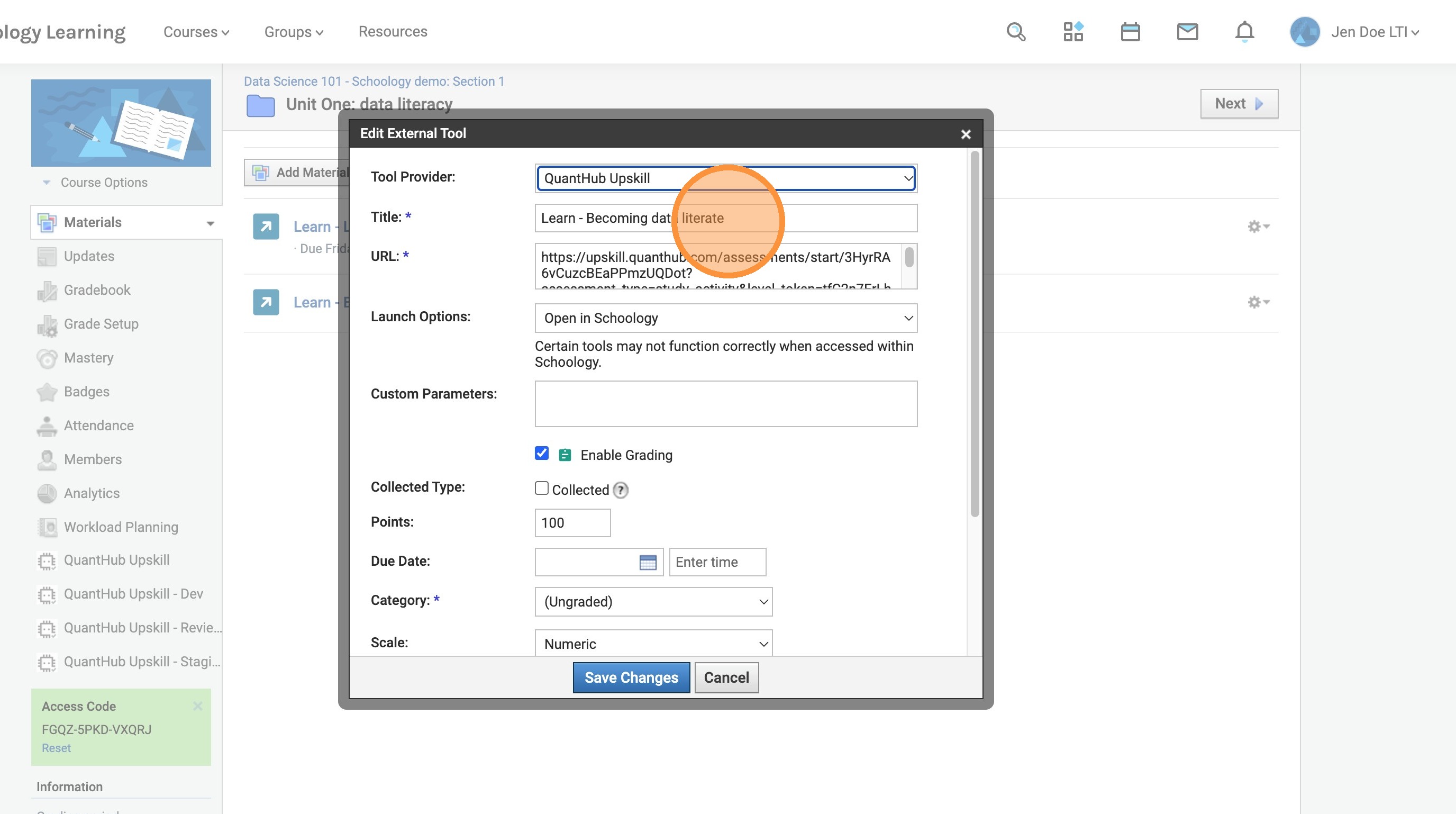
13. Select the "Enable Grading" field. Set your desired point value and due date.
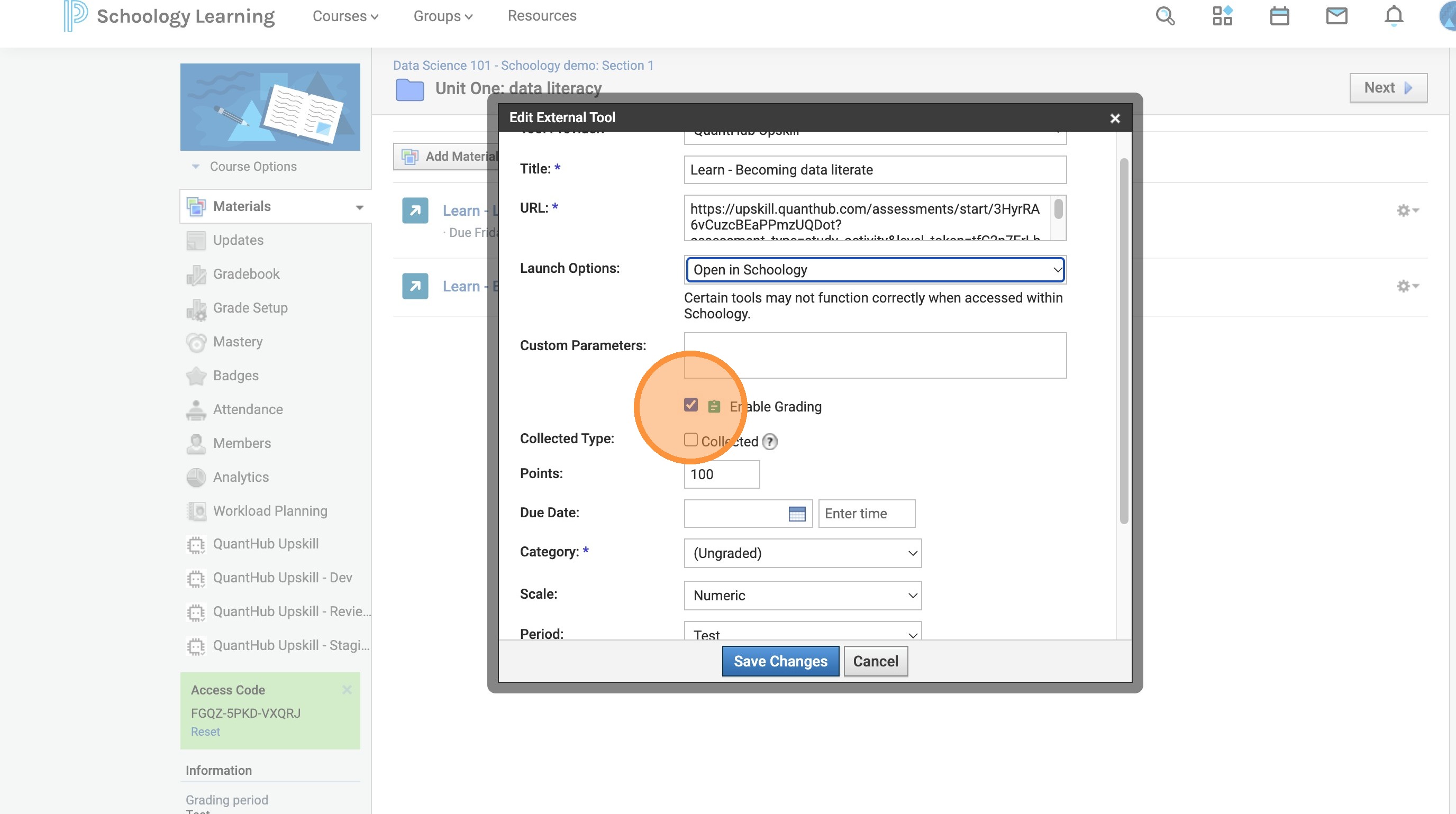
14. This is very important: If you do not select a desired category, the assignment will not automatically be graded. You can select from pre-existing categories that your school may have (classwork, assessment, etc.) or select the create new grading category option.
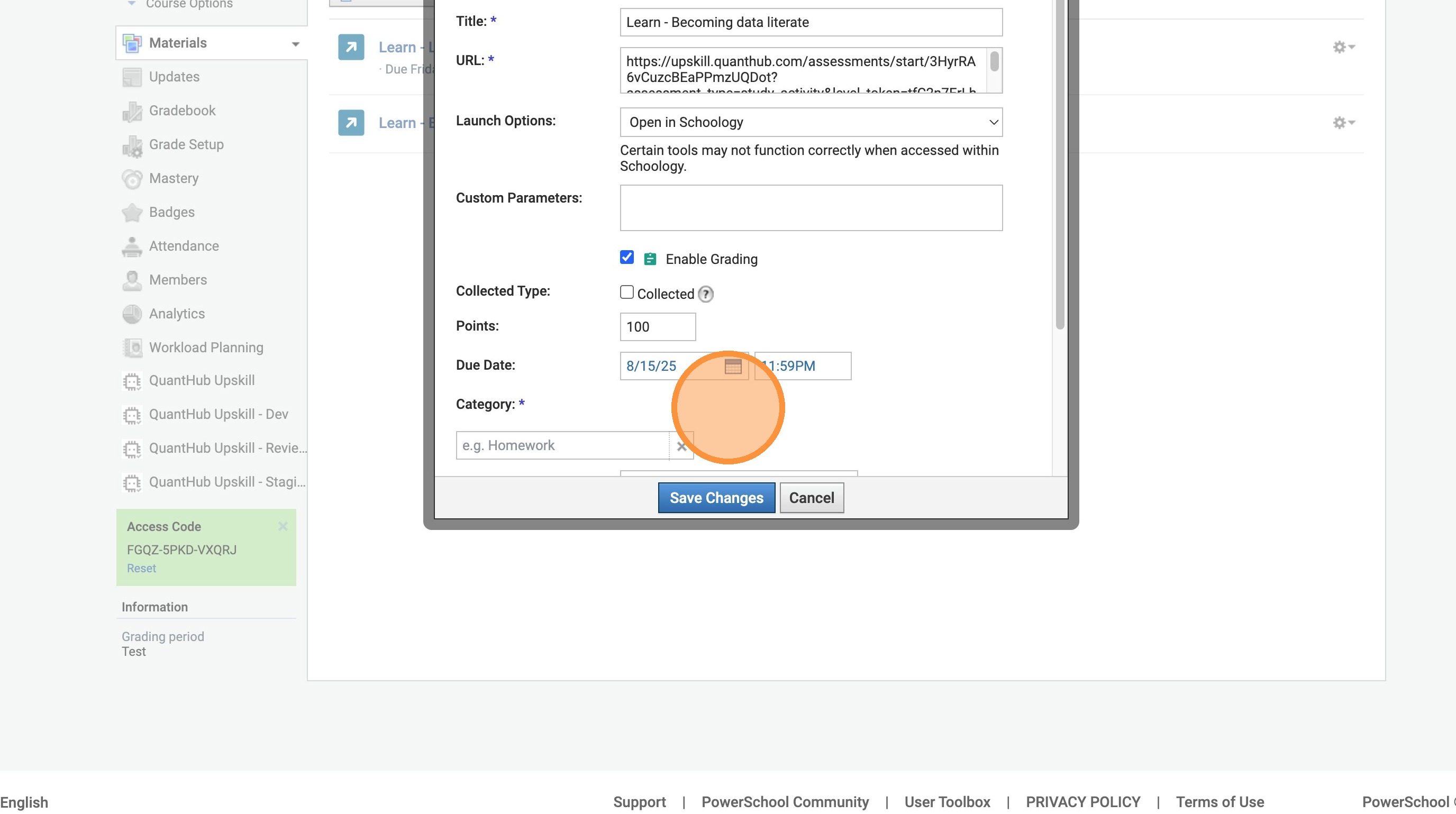
15. Select your desired category.
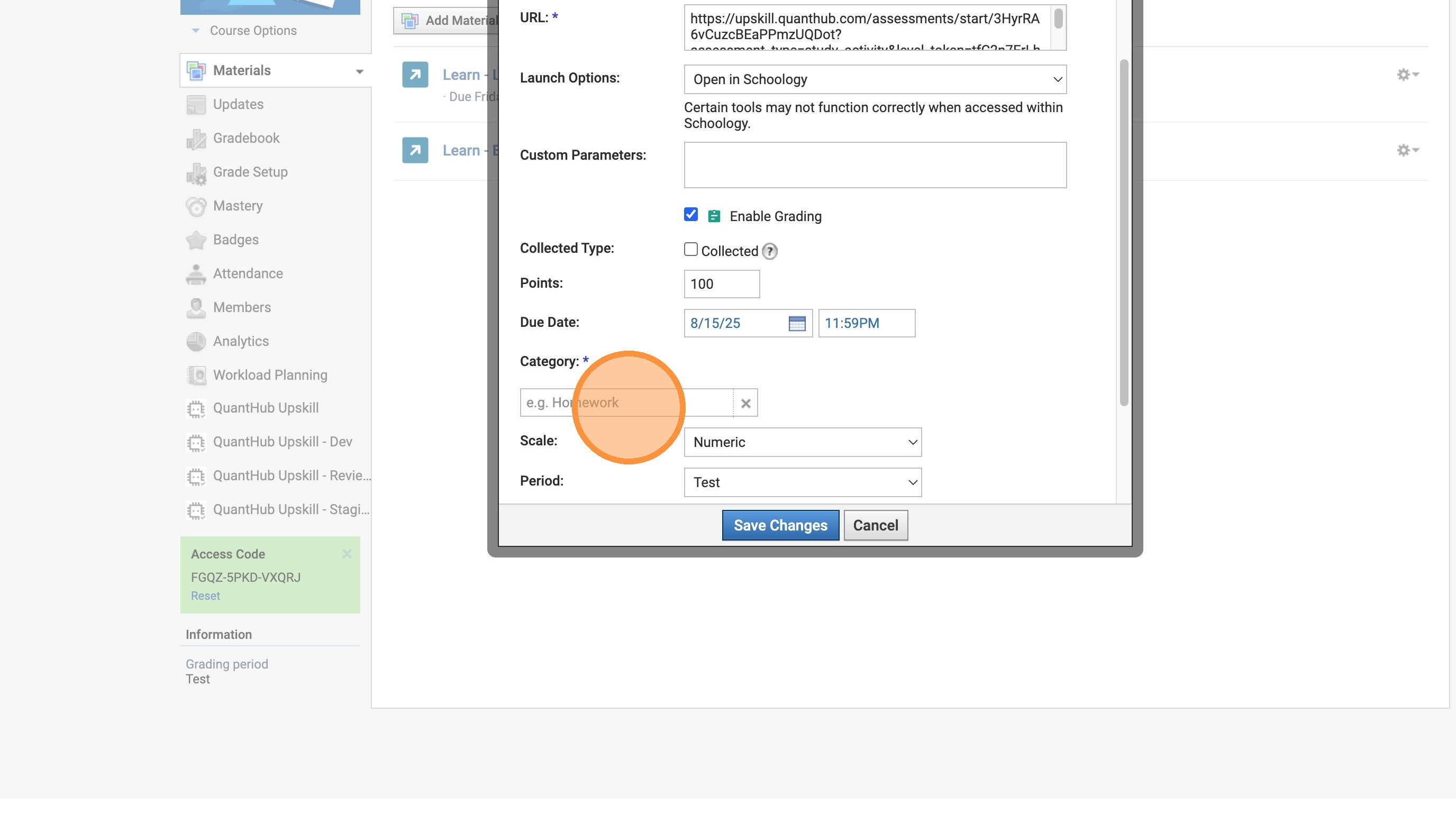
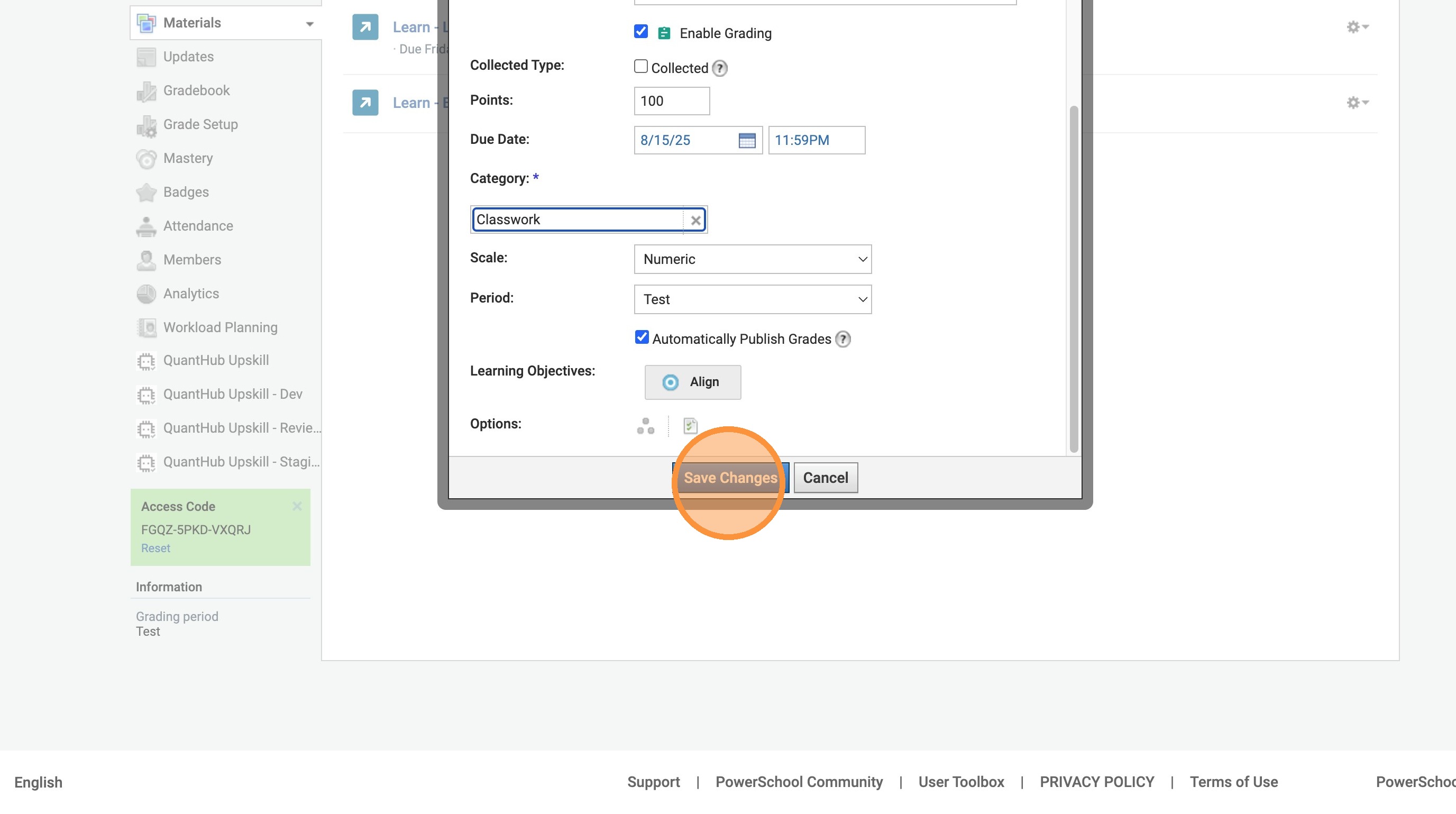
16. Select "Save Changes." Once you do this, your assignment is ready to go! Keep watching to see how we grade FOR YOU!
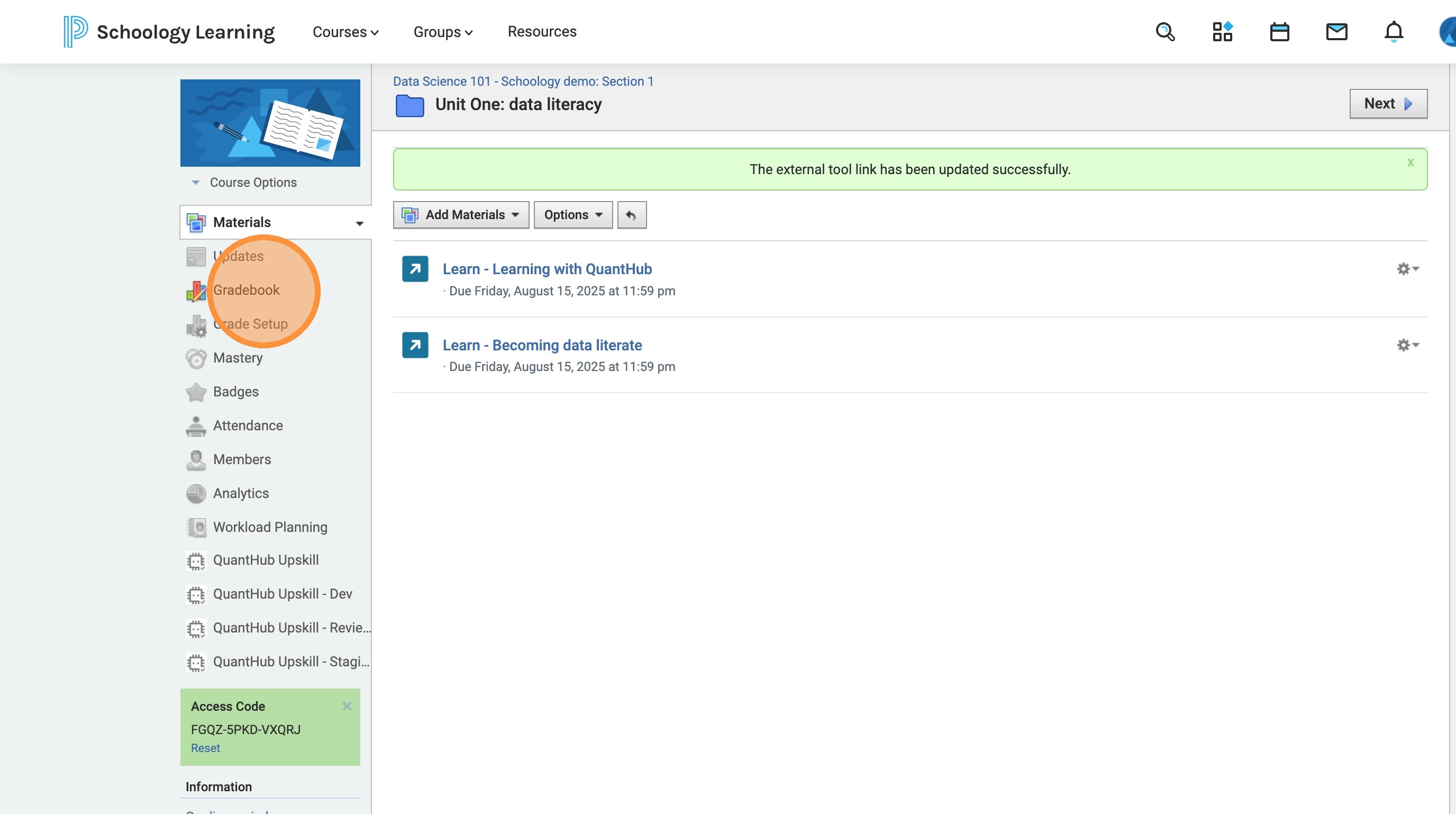
17. If you go over to your grade book, you will see that the assignment will be generated there.
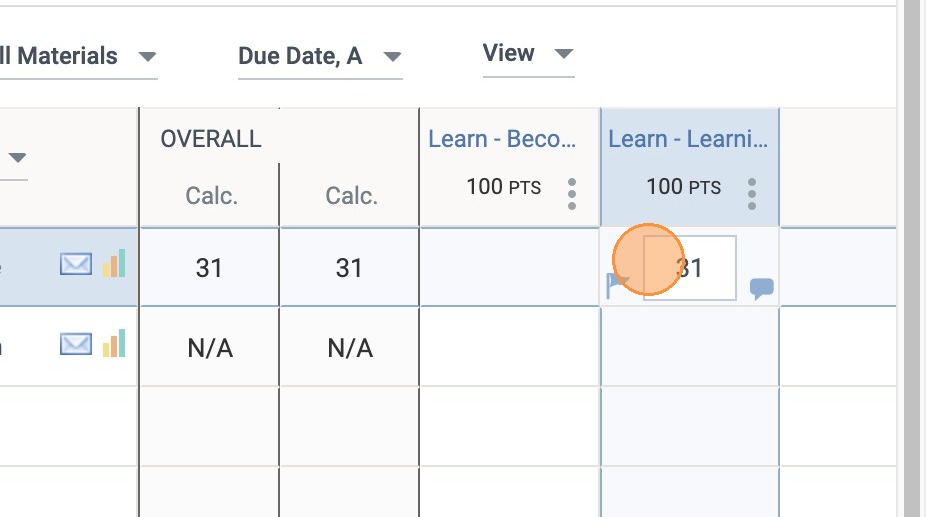
18. As you can see, QuantHub AUTOMATICALLY grades your assignments while students are completing the skill! Based on the percentage mastered, students will earn a grade. If students have not started the skill, they will have a blank space.
Tip: Feel free to reach out to our team if you have issues syncing or if you want help choosing what assignments are best for you! To contact us, please visit https://quanthub.freshdesk.com/support/home and "Submit a Ticket."
Was this article helpful?
That’s Great!
Thank you for your feedback
Sorry! We couldn't be helpful
Thank you for your feedback
Feedback sent
We appreciate your effort and will try to fix the article